Connected Apps
Connect applications from the App Gallery and create app toolkits for your workflows
Connected Apps is where you manage all your active application connections. When you connect an application from the App Gallery, it becomes available here for use in your workflows, agents, and automations.
Seamless App Connections
Connect once, use everywhere across your workflows and agents
Key Features
Multiple Auth Types
Support for OAuth 2.0, API tokens, basic auth, and custom authentication schemes to connect to any application.
Environment Support
Create separate connections for development, staging, and production environments with environment-specific credentials.
Reusable Auth Configs
Use existing authentication configurations or create new ones. Share credentials across multiple app connections securely.
App Toolkit Creation
Transform connected apps into powerful toolkits that your AI agents and workflows can use to perform actions.
Connecting an Application
Follow these steps to connect an application from the App Gallery and create an App Toolkit:
Step 1: Start from App Gallery
Navigate to the App Gallery and find the application you want to connect. Click the Connect button on the application card to begin the connection process.
Step 2: Configure Connection Details
After clicking Connect, you'll be presented with the connection configuration dialog:
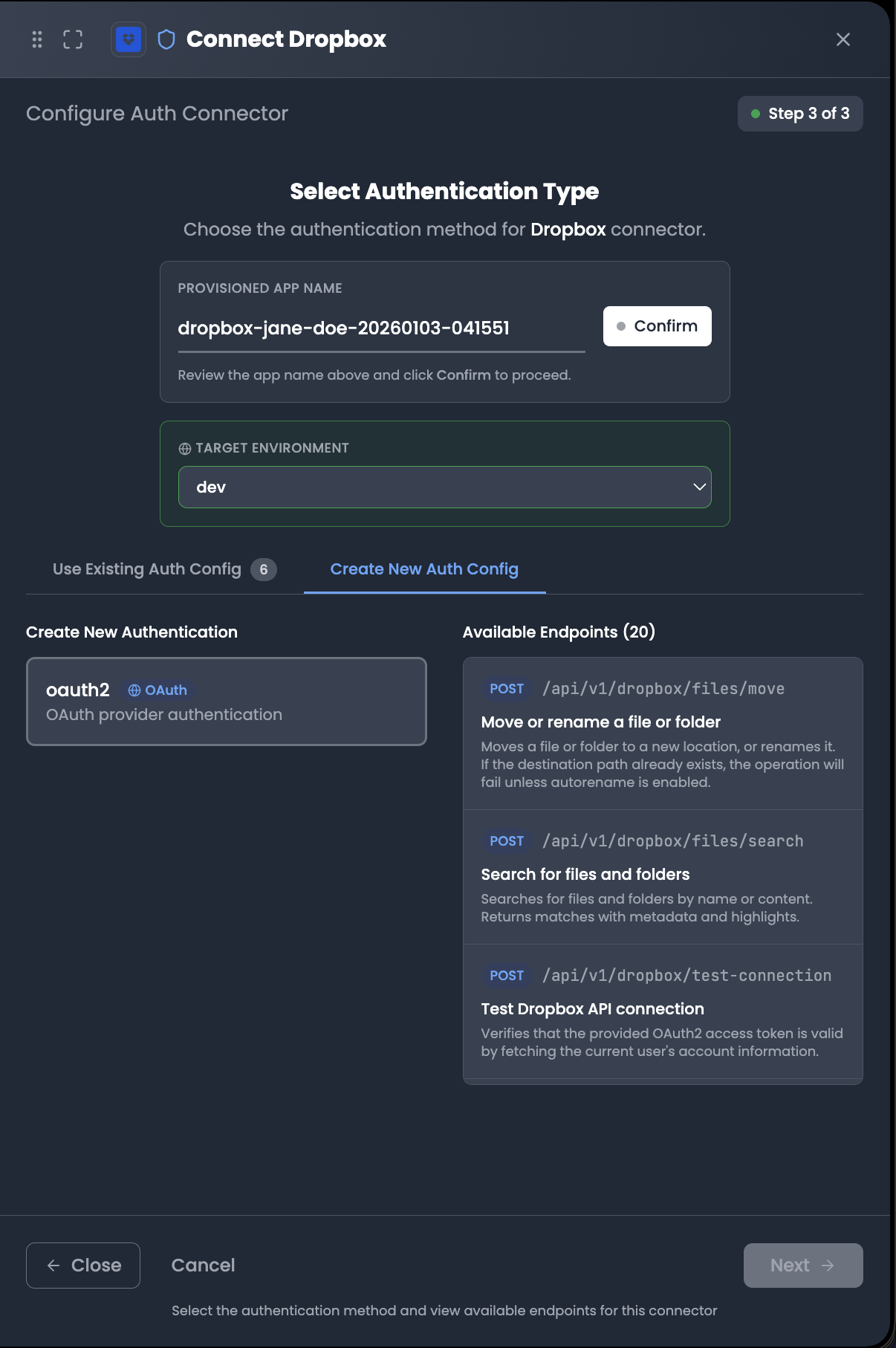
Configure the following settings:
| Field | Description |
|---|---|
| Environment | Select the environment for this connection (Development, Staging, Production) |
| Connection Name | Give your connection a descriptive name for easy identification |
| Authentication Type | Choose from OAuth 2.0, Token/API Key, Basic Auth, or Custom authentication |
| Auth Config | Use an existing auth configuration or create a new one |
Using existing auth configurations allows you to reuse credentials across multiple connections, making it easier to manage and rotate credentials centrally.
Step 3: Provide Credentials
Based on your selected authentication type, provide the required credentials:
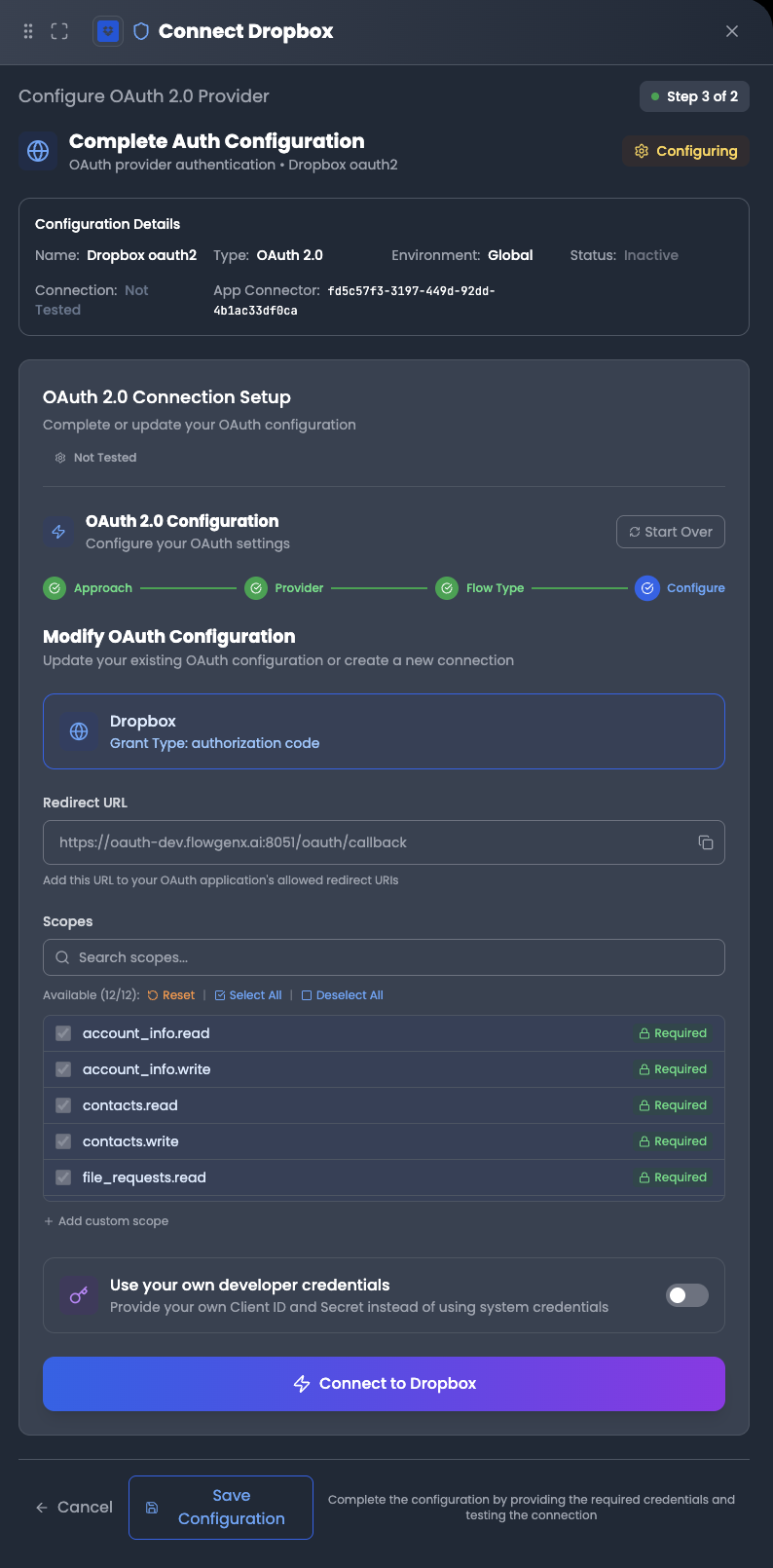
For OAuth 2.0:
- Click the Connect with OAuth button
- You'll be redirected to the application's authorization page
- Grant the required permissions
- You'll be redirected back to FlowGenX
For Token/API Key:
- Enter your API key or access token
- Provide any additional required fields (like base URL or workspace ID)
For Custom Auth:
- Fill in the custom authentication fields as specified by the application
Step 4: Test and Complete
Before creating the App Toolkit, test your connection to ensure everything is configured correctly:
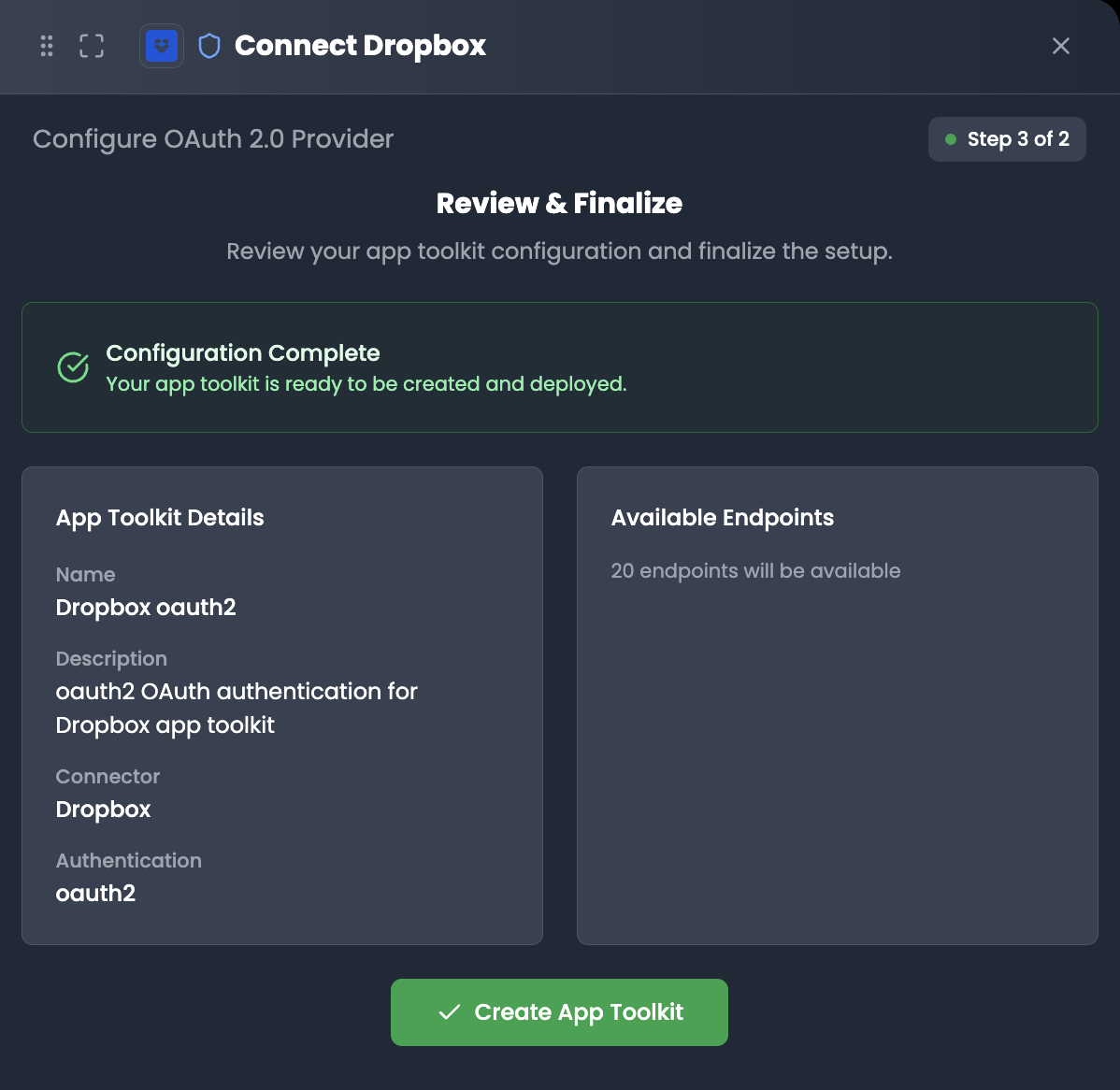
- Test Connection: Click the Test button to verify your credentials work correctly
- Review Details: Confirm all connection settings are correct
- Create App Toolkit: Click Create App Toolkit to finalize the connection
Once created, your App Toolkit will be available in the Connected Apps section and can be used in workflows, agents, and automations.
Authentication Types
OAuth 2.0
The most secure and recommended authentication method for modern applications:
- Authorization Code Flow: Standard OAuth flow with user consent
- Client Credentials: For server-to-server authentication
- Automatic Token Refresh: FlowGenX handles token refresh automatically
- Scopes Management: Request only the permissions you need
Token / API Key
Simple token-based authentication for APIs that support it:
- API Keys: Static keys provided by the application
- Bearer Tokens: JWT or other bearer tokens
- Custom Headers: Tokens sent via custom HTTP headers
Custom Authentication
For applications with non-standard authentication requirements:
- Basic Auth: Username and password authentication
- Digest Auth: Challenge-response authentication
- Custom Headers: Any custom authentication scheme
- Multi-step Auth: Complex authentication flows
Managing Connected Apps
Viewing Connections
All your connected applications appear in the Connected Apps section. Each connection displays:
- App Name: The connected application
- Connection Name: Your custom name for this connection
- Environment: Which environment this connection is for
- Status: Connection health status (Active, Expired, Error)
- Last Used: When the connection was last used in a workflow
Connection Health Monitoring
FlowGenX automatically monitors your connections and alerts you when:
- OAuth tokens are about to expire
- Credentials have been revoked
- Connection errors occur during workflow execution
Reconnecting and Troubleshooting
If a connection encounters issues:
- Check Status: Review the connection status and error message
- Test Connection: Use the test feature to diagnose the issue
- Refresh Credentials: Re-authenticate if tokens have expired
- Update Credentials: Provide new credentials if they've changed
Using Connected Apps
Once connected, your apps become available as:
In Workflows
Use connected app actions in your workflow nodes to:
- Fetch data from external applications
- Create or update records
- Trigger actions in third-party services
- Sync data between applications
In Agents
Assign App Toolkits to your AI agents, enabling them to:
- Interact with external applications autonomously
- Perform multi-step operations across connected apps
- Make decisions based on data from connected services
As MCP Tools
Connected apps can be exposed as MCP (Model Context Protocol) tools for:
- Use with any MCP-compatible AI model
- Integration with external AI systems
- Building complex agentic workflows
Best Practices
Use Descriptive Names
Name your connections clearly (e.g., "Salesforce Production - Sales Team") to easily identify them later.
Separate by Environment
Create separate connections for dev, staging, and production to avoid accidentally modifying production data during testing.
Minimize Permissions
Request only the OAuth scopes and permissions you actually need. This follows the principle of least privilege.
Monitor Connection Health
Regularly check connection status and address any issues before they impact your workflows.