Working with Data
Master data flow, transformation, and mapping in workflows - expressions, variables, and data types
Data is the lifeblood of workflows. Understanding how data flows between nodes, how to transform it, and how to reference it using expressions is essential for building powerful automation. This guide covers everything you need to know about working with data in FlowGenX workflows.
Powerful Data Operations
Complete data flow, transformation, and expression system for complex workflows
Overview
Data in FlowGenX workflows flows from node to node, being transformed, validated, and enriched along the way. Each node receives input data, processes it according to its configuration, and produces output data for downstream nodes.
Key Concepts:
- Data Flow: How data moves through connected nodes
- Data Types: Primitives, complex objects, arrays, and files
- Expressions: Dynamic references to data using
{{ }}syntax - Variables: Global and node-specific data storage
- Schemas: Structure definitions for inputs and outputs
- Transformations: Reshaping and manipulating data
Whether you're building a simple API integration or a complex multi-agent workflow, understanding these data concepts is crucial for success.
Understanding Data Flow
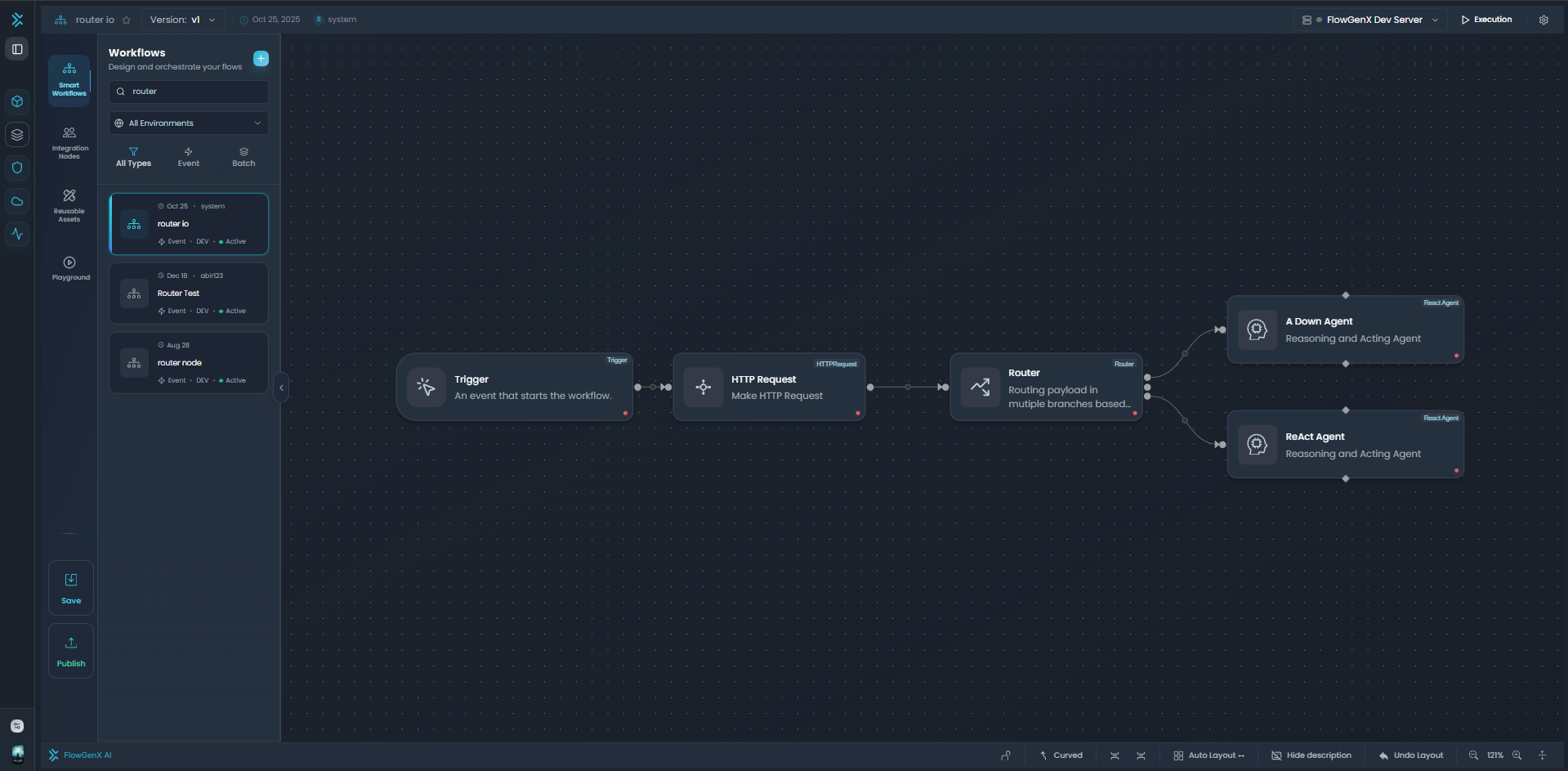
Data flows and transforms through connected nodes with expression-based mappings
How Data Moves Through Workflows
Data flows through workflows following the connections between nodes. When a workflow executes:
- Trigger Node initiates execution, often providing initial data
- Data Flows through connections from outputs to inputs
- Each Node processes input data and produces output data
- Downstream Nodes receive output from upstream nodes
- Final Nodes produce workflow results or trigger actions
Execution Modes
FlowGenX supports two execution modes that affect how data flows:
Event-Driven Mode
- Real-time execution as events occur
- Data flows node-by-node immediately
- Best for: API integrations, webhooks, agent workflows
- Mode identifier:
event_driven
Batch Processing Mode
- Scheduled batch execution of workflow steps
- Data processed in batches through the pipeline
- Best for: ETL jobs, scheduled reports, data migrations
- Mode identifier:
batch_processing
Data Structure (IOState)
The FlowGenX workflow system manages data flow through an IOState structure:
{
  "io_state": "event_driven",  // or "batch_processing"
  "asset_mapping": {
    "input": {
      "node_id_a": {
        "sources": [/* upstream node data */],
        "schema": {/* input schema */}
      }
    },
    "output": {
      "node_id_a": {
        "data": {/* actual output data */},
        "schema": {/* output schema */}
      }
    }
  },
  "node_mapping": {
    "node_id": {
      "input": {/* input field values */},
      "output": {/* output field values */},
      "input_schema": {/* type definitions */},
      "output_schema": {/* type definitions */}
    }
  }
}
Input/Output Schemas
Define expected data structure for inputs and produced outputs, enabling type validation and auto-completion
Data Types
Support for primitives (string, number, boolean), complex types (object, array), and special types (file, date)
Expressions
Dynamic data references using JEXL or Python expressions within {{ }} syntax
Variable Scopes
Access global variables, current node context, and upstream node outputs through scoped references
Data Types and Schemas
FlowGenX supports a rich type system for workflow data, enabling validation and type-safe transformations.
Supported Data Types
| Type | Category | Description | Example |
|---|---|---|---|
| string | Primitive | Text data | "Hello World" |
| number | Primitive | Numeric value (int or float) | 42, 3.14 |
| integer | Primitive | Whole numbers only | 100 |
| float | Primitive | Decimal numbers | 99.99 |
| boolean | Primitive | True/false values | true, false |
| date | Primitive | Date only (no time) | "2024-01-15" |
| datetime | Primitive | Date and time | "2024-01-15T10:30:00Z" |
| object | Complex | JSON object with properties | {"name": "John"} |
| array | Complex | List of items | [1, 2, 3] |
| file | Special | File reference with metadata | File object (see below) |
| null | Special | Absence of value | null |
| text | Special | Long-form text content | "Multi-line text..." |
Schema Definition (IOValue)
Each data field in FlowGenX has a schema definition:
{
  "field_name": {
    "value": "actual data",           // Current value
    "defaultValue": "fallback",       // Default if value is undefined
    "type": "string",                 // Data type
    "expression": "{{ vars.name }}",  // JEXL/Python expression for dynamic values
    "required": true,                 // Whether field is mandatory
    "description": "User's full name" // Field documentation
  }
}
Example Schema:
{
  "input_schema": {
    "user_id": {
      "type": "string",
      "required": true,
      "description": "Unique identifier for the user"
    },
    "email": {
      "type": "string",
      "required": true,
      "expression": "{{ upstream_node.output.email }}"
    },
    "age": {
      "type": "integer",
      "required": false,
      "defaultValue": 0
    },
    "preferences": {
      "type": "object",
      "required": false,
      "defaultValue": {}
    }
  }
}
File Type Handling
Files are handled using a special FileReference structure that includes metadata:
{
  "type": "object",
  "x-file-type": "file",
  "properties": {
    "gcs_key": {
      "type": "string",
      "description": "Google Cloud Storage object key"
    },
    "bucket": {
      "type": "string",
      "description": "Storage bucket name"
    },
    "file_name": {
      "type": "string",
      "description": "Original file name"
    },
    "content_type": {
      "type": "string",
      "description": "MIME type (e.g., image/png, application/pdf)"
    },
    "size_bytes": {
      "type": "integer",
      "description": "File size in bytes"
    },
    "uploaded_at": {
      "type": "string",
      "description": "ISO timestamp of upload"
    },
    "workflow_run_id": {
      "type": "string",
      "description": "Associated workflow execution ID"
    },
    "node_id": {
      "type": "string",
      "description": "Node that created this file"
    }
  },
  "required": ["gcs_key", "bucket", "file_name"]
}
Accessing File Data:
// Reference file in expression
{
  "file_path": "{{ upload_node.output.file.gcs_key }}",
  "file_size": "{{ upload_node.output.file.size_bytes }}",
  "file_type": "{{ upload_node.output.file.content_type }}"
}
Type Validation
FlowGenX validates data types automatically when data flows between nodes. If a node expects an integer but receives a string, a validation error occurs. Use Transform nodes to convert between types when needed.
Accessing Data in Workflows
FlowGenX provides multiple context scopes for accessing data in your workflows. Understanding these scopes is key to writing effective expressions.
Context Scopes Overview
| Scope | Syntax | Description |
|---|---|---|
| Global Variables | vars.* | Workflow-level variables accessible from any node |
| Current Node Context | $.* | Current node's parameters and input data |
| Upstream Node Context | ["nodeId"].* | Data from specific upstream nodes |
| Direct Field Access | fieldName | Current node's input fields (no prefix) |
A. Global Variables (vars.*)
Global variables are workflow-level data accessible from any node in the workflow.
Accessing Global Variables:
{
  "customer_name": "{{ vars.customer_name }}",
  "api_key": "{{ vars.api_credentials.key }}",
  "environment": "{{ vars.environment }}"
}
Use Cases:
- Store workflow-wide configuration (API keys, environment settings)
- Share data between disconnected branches
- Maintain state across workflow executions
- Pass data to nested sub-workflows
Setting Global Variables:
Use the Export Variable feature or SetData node:
// Export variable from any node
{
  "export_variable": {
    "variable_name": "total_sales",
    "value": "{{ calculate_total.output.sum }}",
    "type": "number"
  }
}
B. Current Node Context ($.*)
The current node context provides access to the node's own parameters and input data.
Available Properties:
| Property | Description | Example |
|---|---|---|
$.params.* | Node parameter values | $.params.timeout |
$.inputData | Array of input data objects | $.inputData[0] |
$.columns.* | Available columns in input | $.columns.user_id |
$.input.* | LangGraph input fields | $.input.message |
$.output.* | LangGraph output fields (in progress) | $.output.result |
Example Usage:
{
  "timeout": "{{ $.params.timeout || 30 }}",
  "first_record": "{{ $.inputData[0] }}",
  "user_id": "{{ $.inputData[0].user_id }}",
  "message_text": "{{ $.input.message }}"
}
Accessing Array Elements:
{
  "first_item": "{{ $.inputData[0] }}",
  "second_item": "{{ $.inputData[1] }}",
  "last_item": "{{ $.inputData[-1] }}",
  "all_names": "{{ $.inputData.map(item => item.name) }}"
}
C. Upstream Node Context (["nodeId"].*)
Reference data from any upstream node using its node ID.
Syntax:
{
  "user_data": "{{ [\"fetch_user\"].output.user }}",
  "order_total": "{{ [\"calculate_total\"].output.sum }}",
  "validation_result": "{{ [\"validate_input\"].output.is_valid }}"
}
Note: Node IDs must be quoted and escaped in expressions: [\"node_id\"]
Available Properties on Upstream Nodes:
| Property | Description | Example |
|---|---|---|
.params.input | Node's input configuration | ["nodeId"].params.input |
.params.output | Node's output configuration | ["nodeId"].params.output |
.outputData | Actual output data array | ["nodeId"].outputData[0] |
.columns.* | Output columns/fields | ["nodeId"].columns.user_id |
Navigating Nested Data:
{
  // Access nested object properties
  "street": "{{ [\"fetch_user\"].output.address.street }}",

  // Access array elements
  "first_order": "{{ [\"get_orders\"].output.orders[0] }}",

  // Chain navigation
  "order_item_name": "{{ [\"get_orders\"].output.orders[0].items[0].name }}"
}
D. Direct Field Access
For the current node's input fields, you can access them directly without a prefix:
{
  // Direct field access (current node input)
  "email": "{{ email }}",
  "user_name": "{{ user.name }}",
  "first_item": "{{ items[0] }}",

  // Equivalent to:
  "email_alt": "{{ $.input.email }}",
  "user_name_alt": "{{ $.input.user.name }}",
  "first_item_alt": "{{ $.input.items[0] }}"
}
Nested Object Access:
{
  // Direct navigation through objects
  "city": "{{ user.address.city }}",
  "zip": "{{ user.address.postal_code }}",

  // Array element access
  "first_tag": "{{ tags[0] }}",
  "second_tag": "{{ tags[1] }}"
}
Expression Context Explorer
FlowGenX provides an Expression Context Explorer UI to browse available data:
Features:
- ✅ Tree view of all available scopes
- ✅ Type information for each field
- ✅ Click to insert field reference
- ✅ Search for specific fields
- ✅ See sample data values
Writing Expressions
Expressions enable dynamic data references in workflow configurations. FlowGenX supports three expression types.
Expression Types
STATIC
Direct static values
"Hello World"JEXL
JavaScript Expression Language
{{ user.name }}PYTHON
Python expressions
{{ len(items) }}JEXL Expressions
JEXL (JavaScript Expression Language) is the primary expression type in FlowGenX.
Basic Syntax:
// Field access
{{ user.name }}
{{ order.total }}

// Array access
{{ items[0] }}
{{ users[2].email }}

// Upstream node reference
{{ ["fetch_user"].output.user.name }}

// Global variable
{{ vars.api_key }}

// Current context
{{ $.inputData[0].id }}
Operators:
// Arithmetic
{{ price * quantity }}
{{ total - discount }}
{{ value / 100 }}

// Comparison
{{ age > 18 }}
{{ status == "active" }}
{{ count != 0 }}

// Logical
{{ is_valid && is_active }}
{{ status == "pending" || status == "approved" }}
{{ !is_deleted }}

// Ternary (conditional)
{{ status == "active" ? "Enabled" : "Disabled" }}
{{ age >= 18 ? "Adult" : "Minor" }}
String Operations:
// Concatenation
{{ first_name + " " + last_name }}

// Template literals (in JEXL)
{{ "Hello, " + name + "!" }}

// String methods
{{ email.toLowerCase() }}
{{ name.toUpperCase() }}
{{ text.trim() }}
Array Operations:
// Map
{{ items.map(item => item.name) }}

// Filter
{{ users.filter(user => user.active) }}

// Find
{{ users.find(user => user.id == 123) }}

// Length
{{ items.length }}

// Join
{{ tags.join(", ") }}
Object Operations:
// Property access
{{ user.address.city }}

// Nested access with fallback
{{ user.profile.bio || "No bio available" }}

// Object keys
{{ Object.keys(user) }}

// Object values
{{ Object.values(settings) }}
Python Expressions
For complex transformations, use Python expressions:
Syntax:
# String operations
{{ user_name.upper() }}
{{ email.replace("@", "_at_") }}

# List operations
{{ len(items) }}
{{ [item['name'] for item in items] }}

# Dictionary access
{{ data.get('key', 'default') }}

# Math operations
{{ round(price * 1.08, 2) }}

# Date operations
{{ datetime.now().strftime('%Y-%m-%d') }}
Advanced Python Examples:
# List comprehension
{{ [user['email'] for user in users if user['active']] }}

# Sum of values
{{ sum([order['total'] for order in orders]) }}

# Complex transformation
{{
  {
    'total': sum([item['price'] for item in items]),
    'count': len(items),
    'average': sum([item['price'] for item in items]) / len(items)
  }
}}
Expression Builder UI
The Expression Builder provides a rich editor for writing expressions:
Features:
- Syntax Highlighting: Visual distinction of expression parts
- Type-Ahead Suggestions: Auto-complete for field paths
- Expression Type Toggle: Switch between STATIC, JEXL, PYTHON
- Live Preview: See expression results in real-time
- Error Detection: Highlights syntax errors
Common Expression Patterns
| Pattern | Expression | Use Case |
|---|---|---|
| Conditional Value | {{ amount > 1000 ? "high" : "low" }} | Priority routing |
| Default Fallback | {{ user.name || "Guest" }} | Provide default values |
| String Concat | {{ first + " " + last }} | Combine fields |
| Math Operation | {{ price * 1.08 }} | Calculate tax |
| Array Mapping | {{ items.map(i => i.name) }} | Extract field from array |
| Array Filtering | {{ orders.filter(o => o.status == "paid") }} | Filter by condition |
| Date Formatting | {{ new Date().toISOString() }} | Current timestamp |
| Nested Access | {{ user.address.city }} | Deep object navigation |
| Array Length | {{ items.length }} | Count items |
| Type Conversion | {{ Number(input) }} | Convert types |
Transform Functions (from HTTP Request Node):
FlowGenX supports 40+ transform functions for data manipulation. Here are key ones:
// String transforms
{{ value | upper }}               // Uppercase
{{ value | lower }}               // Lowercase
{{ value | trim }}                // Remove whitespace
{{ value | replace("old", "new") }} // String replacement

// Number transforms
{{ value | round }}               // Round number
{{ value | abs }}                 // Absolute value
{{ value | ceil }}                // Round up
{{ value | floor }}               // Round down

// Array transforms
{{ array | join(", ") }}          // Join array elements
{{ array | first }}               // First element
{{ array | last }}                // Last element
{{ array | length }}              // Array length

// Date transforms
{{ date | format("YYYY-MM-DD") }} // Format date
{{ date | addDays(7) }}           // Add days
{{ date | diff(other_date) }}     // Date difference

// Object transforms
{{ object | keys }}               // Object keys
{{ object | values }}             // Object values
{{ object | get("key") }}         // Safe get property
For the complete list of transforms, see the HTTP Request Node documentation.
Data Mapping
Data mapping connects outputs from one node to inputs of another. FlowGenX provides multiple mapping modes to suit different needs.
Input/Output Mapping Overview
Each LangGraph-compatible node has input and output schemas that define expected data structure:
{
  "input_schema": {
    "user_id": { "type": "string", "required": true },
    "action": { "type": "string", "required": false }
  },
  "output_schema": {
    "result": { "type": "object" },
    "success": { "type": "boolean" }
  }
}
Automatic Mapping Mode
Automatic mode intelligently maps fields from upstream nodes based on name and type matching.
How It Works:
- Analyzes upstream node outputs
- Matches field names (case-insensitive)
- Validates type compatibility
- Auto-populates input fields
Example:
// Upstream node output
{
  "user_id": "12345",
  "email": "user@example.com",
  "name": "John Doe"
}

// Current node input (auto-mapped)
{
  "user_id": "{{ upstream_node.output.user_id }}",  // Auto-matched
  "email": "{{ upstream_node.output.email }}",      // Auto-matched
  "name": "{{ upstream_node.output.name }}"         // Auto-matched
}
Benefits:
- ⚡ Fast configuration for standard data flows
- ✅ Reduces manual mapping errors
- 🔄 Updates automatically if schemas change
Expression Mapping Mode
Expression mode gives you full control over how data maps between nodes.
Manual Field Mapping:
{
  "input": {
    "customer_id": "{{ [\"fetch_customer\"].output.id }}",
    "full_name": "{{ [\"fetch_customer\"].output.first_name + ' ' + [\"fetch_customer\"].output.last_name }}",
    "order_count": "{{ [\"get_orders\"].output.orders.length }}",
    "total_spent": "{{ [\"calculate_total\"].output.sum }}"
  }
}
Multi-Source Mapping:
Combine data from multiple upstream nodes:
{
  "input": {
    // From different nodes
    "user_data": "{{ [\"fetch_user\"].output.user }}",
    "order_data": "{{ [\"fetch_orders\"].output.orders }}",
    "payment_info": "{{ [\"get_payment\"].output.method }}",

    // Computed from multiple sources
    "summary": "{{
      {
        user: [\"fetch_user\"].output.user.name,
        orders: [\"fetch_orders\"].output.orders.length,
        paid: [\"get_payment\"].output.status == 'completed'
      }
    }}"
  }
}
Dynamic Response Mapping
The Dynamic Response Mapping UI provides a visual interface for mapping complex data structures.
Features:
- Visual field mapping interface
- Drag-and-drop field connections
- Multi-source mapping support
- JSON preview of result
- Auto-mapping suggestions
Example Configuration:
{
  "dynamic_mapping": {
    "response_fields": {
      "user": {
        "source_node": "fetch_user",
        "source_path": "output.user",
        "transform": "simple"  // or "expression"
      },
      "orders": {
        "source_node": "get_orders",
        "source_path": "output.orders",
        "transform": "expression",
        "expression": "{{ orders.filter(o => o.status == 'paid') }}"
      }
    }
  }
}
Convergence Mapping
Convergence mapping handles data from multiple branches that merge at a single node (e.g., after Split/Merge pattern).
Scenario:
       ┌──▶ Fetch Profile ──┐
       │                     │
START ──┤                    ├──▶ MERGE ──▶ Combine Data
       │                     │
       └──▶ Fetch Orders ────┘
Convergence Mapping Configuration:
{
  "convergence_mapping": {
    "sources": [
      {
        "node_id": "fetch_profile",
        "mapping": {
          "profile": "{{ [\"fetch_profile\"].output.profile }}"
        }
      },
      {
        "node_id": "fetch_orders",
        "mapping": {
          "orders": "{{ [\"fetch_orders\"].output.orders }}"
        }
      }
    ],
    "merge_strategy": "combine",  // "combine" | "override" | "array"
    "output": {
      "user_data": {
        "profile": "{{ sources[0].profile }}",
        "orders": "{{ sources[1].orders }}",
        "total_orders": "{{ sources[1].orders.length }}"
      }
    }
  }
}
Merge Strategies:
| Strategy | Behavior | Use Case |
|---|---|---|
combine | Merge all source data into single object | Combining user profile + orders |
override | Later sources override earlier ones | Priority-based data selection |
array | Create array of all source outputs | Collect results from parallel branches |
Data Transformation Nodes
FlowGenX provides specialized nodes for data manipulation and transformation.
Transform Node
Reshape JSON data, extract fields, map arrays, and format outputs.
Common Operations:
{
  "operations": [
    {
      "type": "extract",
      "path": "$.data.users",       // JSONPath expression
      "output": "users"
    },
    {
      "type": "map",
      "input": "users",
      "template": {
        "id": "{{ item.id }}",
        "name": "{{ item.first_name + ' ' + item.last_name }}",
        "email": "{{ item.email }}"
      },
      "output": "formatted_users"
    },
    {
      "type": "filter",
      "input": "formatted_users",
      "condition": "item.email != null",
      "output": "valid_users"
    }
  ]
}
Joiner Node
Merge data from multiple sources.
Configuration:
{
  "join_type": "inner",  // "inner" | "left" | "right" | "outer"
  "sources": [
    {
      "node": "fetch_users",
      "key": "user_id"
    },
    {
      "node": "fetch_orders",
      "key": "user_id"
    }
  ],
  "output": "user_orders"
}
Filter Node
Conditionally filter data based on expressions.
Configuration:
{
  "filter_condition": "{{ item.status == 'active' && item.balance > 0 }}",
  "input_array": "{{ upstream_node.output.items }}",
  "output": "filtered_items"
}
SetData Node
Manually set data values in the workflow.
Configuration:
{
  "data": {
    "environment": "production",
    "api_version": "v2",
    "timestamp": "{{ new Date().toISOString() }}",
    "custom_config": {
      "retry_count": 3,
      "timeout": 30
    }
  }
}
Aggregate Node
Summarize and compute aggregate values.
Configuration:
{
  "aggregations": [
    {
      "field": "amount",
      "operation": "sum",
      "output": "total_amount"
    },
    {
      "field": "quantity",
      "operation": "avg",
      "output": "average_quantity"
    },
    {
      "field": "user_id",
      "operation": "count_distinct",
      "output": "unique_users"
    }
  ],
  "group_by": ["category", "region"]
}
Supported Operations:
sum,avg,min,maxcount,count_distinctfirst,lastconcat,collect_list
Working with Files
Files in FlowGenX are handled through a FileReference system with metadata tracking.
File Upload Handling
Files uploaded to workflows are stored in Google Cloud Storage (GCS) and referenced by metadata:
{
  "file": {
    "gcs_key": "workflows/wf_123/node_456/file.pdf",
    "bucket": "flowgenx-uploads",
    "file_name": "document.pdf",
    "content_type": "application/pdf",
    "size_bytes": 1048576,
    "uploaded_at": "2024-01-15T10:30:00Z",
    "workflow_run_id": "run_789",
    "node_id": "upload_node_456"
  }
}
Accessing File Data in Expressions
File Metadata:
{
  "file_path": "{{ upload_node.output.file.gcs_key }}",
  "file_name": "{{ upload_node.output.file.file_name }}",
  "file_size": "{{ upload_node.output.file.size_bytes }}",
  "mime_type": "{{ upload_node.output.file.content_type }}",
  "upload_time": "{{ upload_node.output.file.uploaded_at }}"
}
File Operations:
{
  // Check file type
  "is_pdf": "{{ upload_node.output.file.content_type == 'application/pdf' }}",

  // Check file size
  "is_large": "{{ upload_node.output.file.size_bytes > 10000000 }}",

  // Extract file extension
  "extension": "{{ upload_node.output.file.file_name.split('.').pop() }}"
}
File Transformation Patterns
Download File to Process:
{
  "file_url": "{{ 'https://storage.googleapis.com/' + file.bucket + '/' + file.gcs_key }}",
  "download_and_process": true
}
Pass File to Next Node:
{
  "input_file": "{{ upstream_node.output.file }}",
  // Entire file object passed forward
}
Variable Management
Variables in FlowGenX provide persistent data storage across workflow execution.
Export Variables Feature
The Export Variable feature creates global workflow variables accessible from any node.
Creating Exported Variables:
{
  "exported_variables": {
    "customer_id": {
      "fieldName": "customer_id",
      "value": "{{ fetch_customer.output.id }}",
      "type": "string",
      "nodeId": "current_node_id",
      "nodeName": "Process Customer",
      "updatedAt": "2024-01-15T10:30:00Z"
    }
  }
}
Accessing Exported Variables:
{
  "customer": "{{ vars.customer_id }}",
  "order_for": "{{ vars.customer_id }}"
}
Variable Scoping Rules
| Scope | Lifetime | Access |
|---|---|---|
| Global (vars) | Entire workflow execution | All nodes in workflow |
| Node Output | Until workflow completes | Downstream nodes only |
| Current Context ($) | Current node execution | Current node only |
| Loop Variable | Single loop iteration | Loop body nodes |
Best Practices for Variable Naming
Good Variable Names
- •
customer_id - •
total_order_amount - •
api_base_url - •
is_premium_user - •
last_sync_timestamp
Descriptive, snake_case, indicates purpose
Poor Variable Names
- •
temp - •
x - •
data1 - •
var - •
thing
Vague, non-descriptive, unclear purpose
When to Use Global vs Node-Specific Data
Use Global Variables (vars) When:
- Data needs to be accessed across disconnected branches
- Configuration values used throughout workflow
- State that persists across workflow re-runs
- Sharing data with sub-workflows
Use Node Output References When:
- Data flows linearly from node to node
- Transformation pipelines
- Short-lived intermediate results
- Clear parent-child node relationships
Data Validation
FlowGenX validates data at multiple levels to ensure workflow reliability.
Schema Validation
Every node with schemas validates incoming data against expected structure:
Validation Checks:
- Type Matching: Data type must match schema definition
- Required Fields: All required fields must be present
- Format Validation: Dates, emails, URLs match expected format
- Range Validation: Numbers within acceptable ranges
Example Schema with Validation:
{
  "input_schema": {
    "email": {
      "type": "string",
      "required": true,
      "pattern": "^[a-zA-Z0-9._%+-]+@[a-zA-Z0-9.-]+\\.[a-zA-Z]{2,}$"
    },
    "age": {
      "type": "integer",
      "required": true,
      "minimum": 0,
      "maximum": 150
    },
    "created_at": {
      "type": "datetime",
      "required": true
    }
  }
}
Type Checking
FlowGenX performs automatic type checking:
// Type mismatch error
{
  "expected": "integer",
  "received": "string",
  "field": "age",
  "value": "twenty-five"
}
Type Coercion:
Use expressions to convert types:
{
  // String to number
  "age": "{{ Number(input.age) }}",

  // Number to string
  "id": "{{ String(input.id) }}",

  // To boolean
  "is_active": "{{ Boolean(input.active) }}",

  // Parse JSON
  "data": "{{ JSON.parse(input.json_string) }}"
}
Custom Validation Expressions
Add validation logic using expressions:
{
  "validation": {
    "email_valid": "{{ email.includes('@') && email.includes('.') }}",
    "age_valid": "{{ age >= 18 && age <= 100 }}",
    "amount_valid": "{{ amount > 0 && amount <= 10000 }}"
  },
  "validation_mode": "all"  // "all" | "any"
}
Error Handling for Invalid Data
Configure how nodes handle validation errors:
{
  "on_validation_error": "fail",  // "fail" | "skip" | "use_default"
  "error_output": "validation_errors",
  "default_values": {
    "age": 0,
    "email": "unknown@example.com"
  }
}
Visual Validation Feedback
Advanced Data Patterns
Master these advanced patterns for complex workflow scenarios.
Accumulator Pattern (State in Loops)
Maintain cumulative state across loop iterations:
Scenario: Sum all order totals in a loop
// ForEach Loop Configuration
{
  "collection": "{{ orders }}",
  "item_name": "current_order",
  "accumulator": {
    "running_total": 0,
    "processed_count": 0
  }
}

// Inside Loop Body
{
  "update_accumulator": {
    "running_total": "{{ accumulator.running_total + current_order.total }}",
    "processed_count": "{{ accumulator.processed_count + 1 }}"
  }
}

// After Loop Ends
{
  "final_total": "{{ accumulator.running_total }}",
  "total_orders": "{{ accumulator.processed_count }}"
}
Progressive State Building
Build up complex data structures step by step:
// Step 1: Initialize state
{
  "user_profile": {}
}

// Step 2: Add basic info
{
  "user_profile": "{{
    { ...vars.user_profile, name: user.name, email: user.email }
  }}"
}

// Step 3: Add orders
{
  "user_profile": "{{
    { ...vars.user_profile, orders: orders, total_spent: total }
  }}"
}

// Step 4: Add preferences
{
  "user_profile": "{{
    { ...vars.user_profile, preferences: prefs, tier: tier }
  }}"
}
Parallel Aggregation
Gather and aggregate data from parallel branches:
Workflow:
            ┌──▶ Get Revenue ──┐
            │                   │
START ──▶ SPLIT ──▶ Get Users ──▶ MERGE ──▶ Aggregate ──▶ Report
            │                   │
            └──▶ Get Orders ───┘
Merge Configuration:
{
  "aggregation": {
    "total_revenue": "{{ sources[0].output.sum }}",
    "total_users": "{{ sources[1].output.count }}",
    "total_orders": "{{ sources[2].output.count }}",
    "metrics": {
      "revenue_per_user": "{{ sources[0].output.sum / sources[1].output.count }}",
      "orders_per_user": "{{ sources[2].output.count / sources[1].output.count }}"
    }
  }
}
Multi-Source Convergence
Combine data from multiple unrelated sources:
{
  "consolidated_data": {
    // From API
    "external_data": "{{ api_response.output.data }}",

    // From database
    "internal_data": "{{ db_query.output.rows }}",

    // From file
    "file_data": "{{ file_parse.output.content }}",

    // Computed merge
    "combined": "{{
      {
        external: api_response.output.data,
        internal: db_query.output.rows.map(r => r.id),
        file_summary: file_parse.output.content.length
      }
    }}"
  }
}
Nested Data Navigation
Navigate deeply nested object structures:
{
  // Safe navigation with fallbacks
  "city": "{{ user.profile?.address?.city || 'Unknown' }}",

  // Array navigation
  "first_order_item": "{{ orders[0]?.items[0]?.name }}",

  // Complex path
  "shipping_city": "{{
    orders
      .find(o => o.status == 'shipped')
      ?.shipping_address
      ?.city
      || 'Not shipped'
  }}"
}
Dynamic Schema Generation
Generate schemas based on runtime data:
{
  "dynamic_schema": "{{
    Object.keys(input_data[0]).reduce((schema, key) => {
      schema[key] = {
        type: typeof input_data[0][key],
        required: true
      };
      return schema;
    }, {})
  }}"
}
Real-World Example: E-Commerce Order Processing
Complete Pattern:
// 1. Fetch order
{
  "order": "{{ api.output.order }}"
}

// 2. Validate order data
{
  "is_valid": "{{
    order.total > 0 &&
    order.items.length > 0 &&
    order.customer.email
  }}"
}

// 3. Calculate totals (loop through items)
{
  "item_total": "{{ current_item.price * current_item.quantity }}",
  "running_total": "{{ accumulator.total + item_total }}"
}

// 4. Apply discounts
{
  "discount_amount": "{{
    order.total > 100 ? order.total * 0.1 : 0
  }}",
  "final_total": "{{ order.total - discount_amount }}"
}

// 5. Determine shipping
{
  "shipping_cost": "{{
    order.total > 50 ? 0 :
    order.customer.address.country == 'US' ? 5 : 15
  }}"
}

// 6. Build final order object
{
  "processed_order": {
    "order_id": "{{ order.id }}",
    "customer": "{{ order.customer }}",
    "items": "{{ order.items }}",
    "subtotal": "{{ order.total }}",
    "discount": "{{ discount_amount }}",
    "shipping": "{{ shipping_cost }}",
    "total": "{{ order.total - discount_amount + shipping_cost }}",
    "processed_at": "{{ new Date().toISOString() }}"
  }
}
Best Practices
Follow these guidelines for effective data management in workflows.
Data Flow Design Principles
- Keep Data Flow Linear: Avoid complex circular references
- Minimize Data Transformation Steps: Transform once, use many times
- Use Schema Definitions: Define expected structure upfront
- Validate Early: Catch bad data at workflow entry points
- Document Data Structures: Use descriptions in schemas
Schema Design Tips
Good Schema Practices
- ✓ Define all expected fields with types
- ✓ Mark truly required fields only
- ✓ Provide default values for optional fields
- ✓ Use descriptive field names
- ✓ Add descriptions to complex fields
- ✓ Keep schemas flat when possible
Schema Anti-Patterns
- ✗ Marking all fields as required
- ✗ Using generic field names (data1, temp)
- ✗ Deeply nested objects (>3 levels)
- ✗ Mixing unrelated data in same schema
- ✗ No type definitions (everything "any")
- ✗ Duplicating schemas across nodes
Expression Optimization
Performance Tips:
// ❌ Inefficient: Multiple lookups
{
  "name": "{{ users.find(u => u.id == current_id).name }}",
  "email": "{{ users.find(u => u.id == current_id).email }}",
  "age": "{{ users.find(u => u.id == current_id).age }}"
}

// ✅ Efficient: Single lookup
{
  "_user": "{{ users.find(u => u.id == current_id) }}",
  "name": "{{ _user.name }}",
  "email": "{{ _user.email }}",
  "age": "{{ _user.age }}"
}
// ❌ Inefficient: Complex nested expression
{
"result": "{{
data.items
.filter(i => i.active)
.map(i => i.orders)
.flat()
.filter(o => o.paid)
.map(o => o.total)
.reduce((a, b) => a + b, 0)
}}"
}
// ✅ Efficient: Use Transform node
// Break into multiple Transform operations or use dedicated Aggregate nodeDebugging Data Issues
Techniques:
- Use Logger Nodes: Log data at each transformation step
- Preview Data: Execute nodes individually to see outputs
- Simplify Expressions: Break complex expressions into steps
- Check Types: Verify data types match expectations
- Validate Upstream: Ensure upstream nodes produce expected data
Debug Expression:
{
  "_debug": {
    "input_type": "{{ typeof input }}",
    "input_keys": "{{ Object.keys(input) }}",
    "input_sample": "{{ JSON.stringify(input).substring(0, 200) }}"
  }
}
Performance Considerations
Optimize Data Flow:
- Filter Early: Remove unnecessary data as early as possible
- Batch Operations: Process arrays in batches, not one-by-one
- Cache Expensive Computations: Store in variables, reuse
- Limit Data Size: Don't pass entire datasets if you only need summary
- Use Parallel Execution: Split independent operations across branches
Memory Management:
// ❌ Memory intensive: Load all data
{
  "all_orders": "{{ fetch_all_orders.output.orders }}",  // 100,000+ items
  "processed": "{{ all_orders.map(processOrder) }}"
}

// ✅ Memory efficient: Process in batches
{
  "batch_size": 100,
  "current_batch": "{{ all_orders.slice(batch_index * batch_size, (batch_index + 1) * batch_size) }}",
  "processed_batch": "{{ current_batch.map(processOrder) }}"
}
Security Considerations
Protect Sensitive Data:
Sensitive Data Handling
- • Never log API keys, passwords, or tokens
- • Use environment variables for secrets (
{{ vars.api_key }}) - • Mask sensitive fields in error messages
- • Encrypt data at rest and in transit
- • Limit access to sensitive workflow variables
Sanitize User Input:
{
  "sanitized_email": "{{ email.toLowerCase().trim() }}",
  "safe_name": "{{ name.replace(/[^a-zA-Z0-9\\s]/g, '') }}",
  "validated_url": "{{
    url.startsWith('https://') ? url : null
  }}"
}
Troubleshooting
Common data-related issues and solutions:
| Issue | Cause | Solution |
|---|---|---|
| Expression not evaluating | Syntax error or undefined reference | Use Expression Context Explorer to verify field paths; check for typos |
| Type mismatch error | Data type doesn't match schema | Use type conversion: Number(value), String(value) |
| Missing data from upstream | Upstream node failed or wrong output reference | Check upstream execution logs; verify node ID in expression |
| Mapping not working | Field names don't match or wrong source node | Use expression mapping mode; manually specify source fields |
| Schema validation fails | Required fields missing or wrong type | Check input data structure; add Transform node to reshape |
| Variable not accessible | Variable not exported or wrong scope | Verify variable is exported with Export Variable feature |
| Null or undefined in expression | Field doesn't exist or upstream data is null | Use fallback: {{ field || "default" }} |
| Array operation fails | Data is not an array or array is empty | Check with: {{ Array.isArray(data) && data.length > 0 }} |
| File upload not working | File reference structure incorrect | Verify file object has gcs_key, bucket, file_name fields |
| Data not persisting | Using node output instead of global variable | Use Export Variable to create persistent global vars |
Debug Techniques
1. Log Data at Each Step:
Add Logger nodes between transformations:
{
  "log_message": "Data after transformation",
  "log_data": "{{ JSON.stringify(current_data, null, 2) }}"
}
2. Use Preview Mode:
Execute nodes individually to see actual data:
- Click Preview/Execute on node
- Examine output data structure
- Verify against expected schema
3. Validate Expressions Incrementally:
Build complex expressions step by step:
// Step 1: Basic access
{{ users }}

// Step 2: Add filter
{{ users.filter(u => u.active) }}

// Step 3: Add map
{{ users.filter(u => u.active).map(u => u.email) }}

// Step 4: Add validation
{{ users.filter(u => u.active && u.email).map(u => u.email) }}
4. Check Data Types:
{
  "data_type": "{{ typeof data }}",
  "is_array": "{{ Array.isArray(data) }}",
  "is_object": "{{ data !== null && typeof data === 'object' }}",
  "keys": "{{ Object.keys(data || {}) }}"
}
Next Steps
Now that you understand data flow and manipulation, explore related topics:
Working with Nodes
Learn how to add, configure, connect, and manage workflow nodes
HTTP Request Node
Complete expression reference with 40+ transform functions
Data Nodes Library
Explore Transform, Joiner, Filter, and other data manipulation nodes
Debugging and Testing
Debug data flow issues and validate workflows before deployment