MCP Playground
Test and debug MCP servers, tools, and AI agents in an interactive environment
The MCP Playground is an interactive testing environment where you can test MCP servers, execute tools, chat with AI agents, and debug your agentic workflows—all in real-time before deploying to production.
Interactive Testing Environment
Test MCP tools, chat with agents, and debug workflows in real-time
What is the MCP Playground?
The MCP Playground provides three testing modes:
MCP Tool Testing
Execute individual MCP tools with custom parameters and see real-time results
Agent Chat Interface
Interact with AI agents in a conversational interface, test agent reasoning and tool usage
Workflow Testing
Test entire agentic workflows with input/output validation and execution tracing
Accessing the Playground
From MCP Server Management
1
Navigate to MCP Servers
Go to Agentic Toolkit → MCP Servers
Click on any MCP server to open its details, then click the Test in Playground button
From Agent Builder
2
Open Agent Playground
When editing an agent, click the Playground tab or button to test the agent with its configured MCP tools
From Workflow Editor
3
Test Workflow in Playground
In the workflow editor, use the Test button to open the Playground with the workflow's context and test execution
Playground Interface Overview
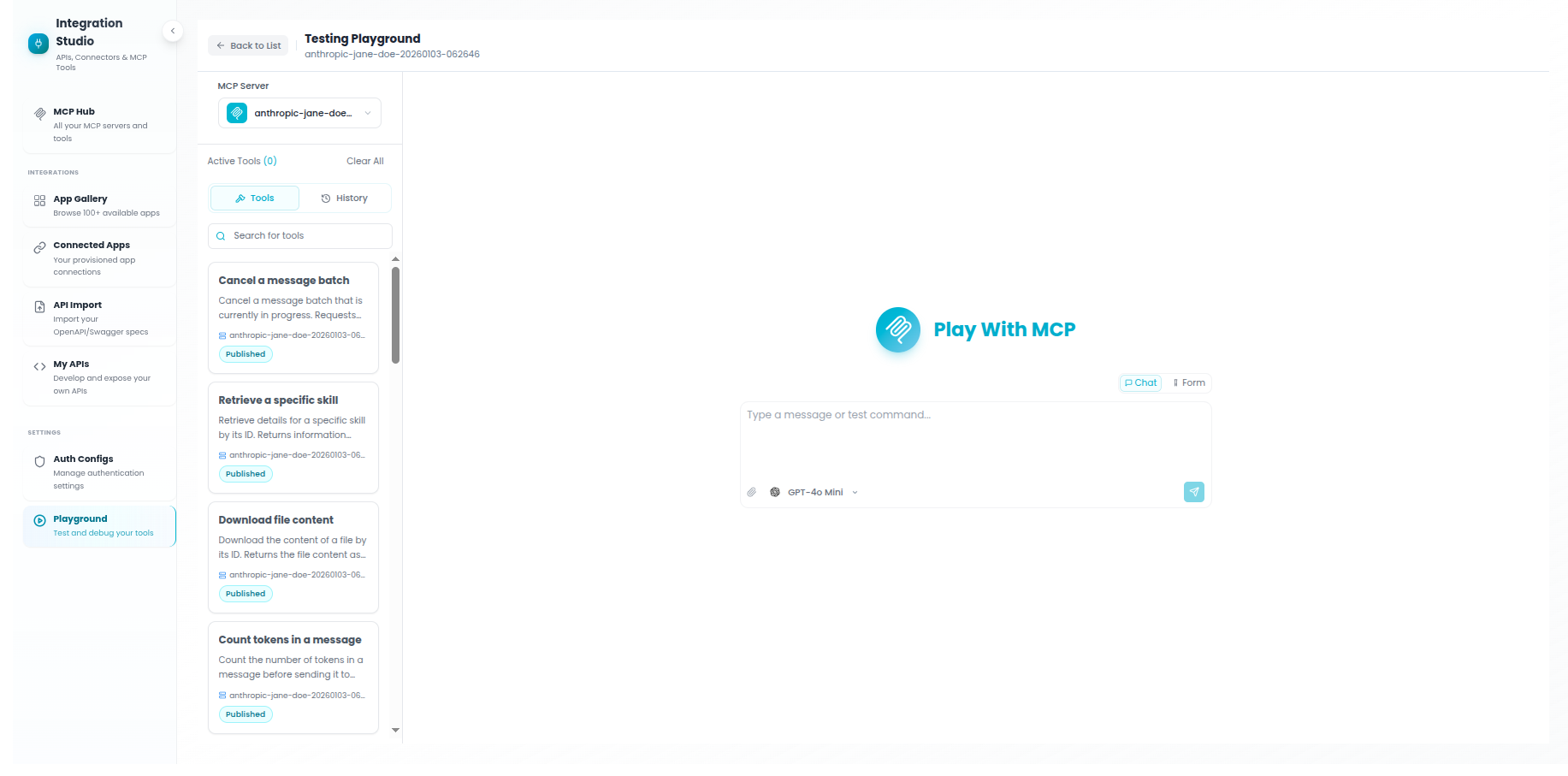
The Playground interface is divided into three main sections:
Main Interface Components
1
Sidebar (Left)
Browse and select MCP servers, view available tools, and see tool details
2
Main Panel (Center)
Chat interface for agents or tool testing interface with parameter inputs
3
Execution Drawer (Right/Bottom)
Real-time execution traces, step-by-step debugging, and performance metrics
Testing MCP Tools
Individual Tool Testing
Test a single MCP tool with custom parameters:
1
Select MCP Server
In the left sidebar, choose the MCP server you want to test. All available tools from that server will be displayed.
2
Choose a Tool
Click on any tool from the list. The main panel will display the tool's parameters and input form.
3
Fill Parameters
Enter values for required and optional parameters. Parameter types are validated automatically:
- Strings, numbers, booleans
- Arrays and objects (JSON format)
- File uploads (for tools that support files)
4
Execute Tool
Click Run Tool to execute. Results appear in real-time in the main panel and execution trace drawer.
Multi-Tool Testing
Test multiple tools in sequence or parallel:
Structured Testing Mode
- Enable Structured Tests mode in the settings panel
- Select multiple tools from the sidebar (checkbox selection)
- Configure parameters for each selected tool
- Execute all tools with a single click
- View results side-by-side in the results panel
Chatting with AI Agents
Agent Chat Mode
Interact with AI agents that have access to MCP tools:
1
Switch to Agent Mode
Click the Agent tab in the Playground settings. Select the agent you want to test from the dropdown.
2
Start a Conversation
Type your message in the chat input. The agent will respond using its configured LLM and available MCP tools.
Example Prompts:
- "Search for recent orders in the CRM"
- "Get the weather forecast for New York"
- "Analyze the sales data from last month"
3
Watch Agent Reasoning
As the agent processes your request, you'll see:
- Thinking steps - Agent's reasoning process
- Tool calls - Which MCP tools the agent invokes
- Tool results - Data returned from each tool
- Final response - Agent's synthesized answer
4
Review Execution Trace
Open the execution drawer to see detailed traces of every step, including LLM prompts, tool parameters, and timing information.
Agent Sessions
The Playground maintains conversation sessions:
Session Management
- Create New Session - Start fresh conversation with the agent
- Continue Session - Agent remembers previous messages
- Session History - Access previous conversations
- Session Context - View conversation context and memory
Testing Workflows
Workflow Mode
Test entire agentic workflows with inputs and outputs:
1
Select Workflow Mode
In Playground settings, switch to Workflow mode and select the workflow to test.
2
Configure Input Data
The Playground displays input fields based on the workflow's input schema. Fill in required and optional inputs.
3
Execute Workflow
Click Run Workflow. Watch real-time execution with streaming step updates.
4
Review Output
View workflow output, intermediate results from each node, and execution summary.
Execution Tracing
Real-Time Trace Viewer
The execution drawer shows detailed traces of every operation:
Trace Information
Execution Steps
- Step-by-step execution flow
- Timestamp for each operation
- Step duration and performance
- Success/failure indicators
Tool Execution Details
- Tool name and parameters
- Request payload (JSON)
- Response data
- Execution time
Agent Reasoning
- LLM prompts sent
- Agent thinking process
- Tool selection reasoning
- Token usage metrics
Error Details
- Error messages and stack traces
- Failed step identification
- Retry attempts
- Debugging hints
Streaming Updates
Watch execution in real-time with streaming updates:
Live Execution Streaming
- See each step as it executes (no waiting for completion)
- Monitor agent reasoning in real-time
- Watch tool calls happen live
- Identify performance bottlenecks immediately
Playground Settings
Configuration Options
Available Settings
Mode Selection
Choose between MCP Tool Testing, Agent Chat, or Workflow Testing modes
Server Selection
Select which MCP server(s) to use for testing
Agent Configuration
Choose agent, configure LLM settings, adjust temperature and max tokens
Chat/Form Toggle
Switch between conversational chat interface and structured form inputs
Tracing Options
Enable detailed execution traces, adjust verbosity level
Best Practices
Testing Best Practices
1. Test Tools Before Agent Integration
Always test individual MCP tools first to ensure they work correctly before adding them to agents.
2. Start with Simple Queries
When testing agents, begin with straightforward requests to verify basic functionality, then gradually increase complexity.
3. Review Execution Traces
Always check the execution trace to understand how the agent is using tools and making decisions.
4. Test Edge Cases
Verify behavior with invalid inputs, missing parameters, and error conditions before production deployment.
5. Monitor Performance
Use timing information in traces to identify slow tools or bottlenecks in your workflow.
6. Save Test Sessions
Keep agent conversation sessions as test cases for regression testing after making changes.
Debugging Common Issues
Troubleshooting Guide
Tool Execution Fails
- Check authentication credentials are configured correctly
- Verify parameter types match tool schema
- Review execution trace for detailed error messages
- Test the tool individually before using in agent
Agent Not Using Tools
- Ensure MCP server is properly connected to the agent
- Check tool descriptions are clear and relevant
- Verify agent has permission to use the tools
- Try more explicit prompts mentioning tool capabilities
Slow Execution
- Check execution trace for slow tools
- Verify MCP server is running and responsive
- Review agent reasoning steps for unnecessary loops
- Consider caching frequently accessed data
Incorrect Results
- Review tool parameters passed by the agent
- Check if tool output format matches expectations
- Verify agent prompt includes necessary context
- Test tool independently to isolate the issue