Knowledge Base Node
AI-powered semantic search and document upload with metadata tagging and multi-collection support
The Knowledge Base node enables AI-powered semantic search and document upload capabilities in your workflows, integrating with your knowledge base collections to retrieve relevant information or index new documents with intelligent metadata tagging.
AI-Powered Knowledge Management
Semantic search and document upload with intelligent metadata and multi-collection support
Overview
The Knowledge Base node is your gateway to intelligent document management within workflows. Whether you need to retrieve contextually relevant information using AI-powered semantic search or upload and index new documents with rich metadata tagging, this node provides enterprise-grade knowledge base integration.
Key Capabilities
Semantic Search
AI-powered document retrieval using natural language queries with relevance scoring and cross-collection search capabilities.
Document Upload
File upload with automatic chunking, embedding generation, and comprehensive metadata tagging for enhanced organization.
Collection Management
Multi-collection search support for comprehensive queries or single-collection upload for targeted document indexing.
Built-in Testing
Execute test searches with tabbed results display or test uploads with progress tracking before deploying workflows.
Use Cases
- Technical Documentation Search: Find relevant API documentation, configuration guides, or troubleshooting steps using natural language queries
- Compliance Document Upload: Index regulatory documents with metadata tags for GDPR, HIPAA, SOX, or other compliance frameworks
- Cross-Collection Knowledge Retrieval: Search across multiple knowledge bases simultaneously to find comprehensive information
- Automated Document Indexing: Upload documents from workflow triggers with automatic metadata extraction and tagging
- Context-Aware Information Retrieval: Retrieve relevant information based on workflow context for dynamic decision-making
- Regulatory Content Organization: Organize and retrieve compliance-related documents using metadata-based filtering
Configuration Guide: Semantic Search
The Semantic Search operation enables AI-powered document retrieval using natural language queries with advanced filtering and relevance scoring.
1. Operation Selection
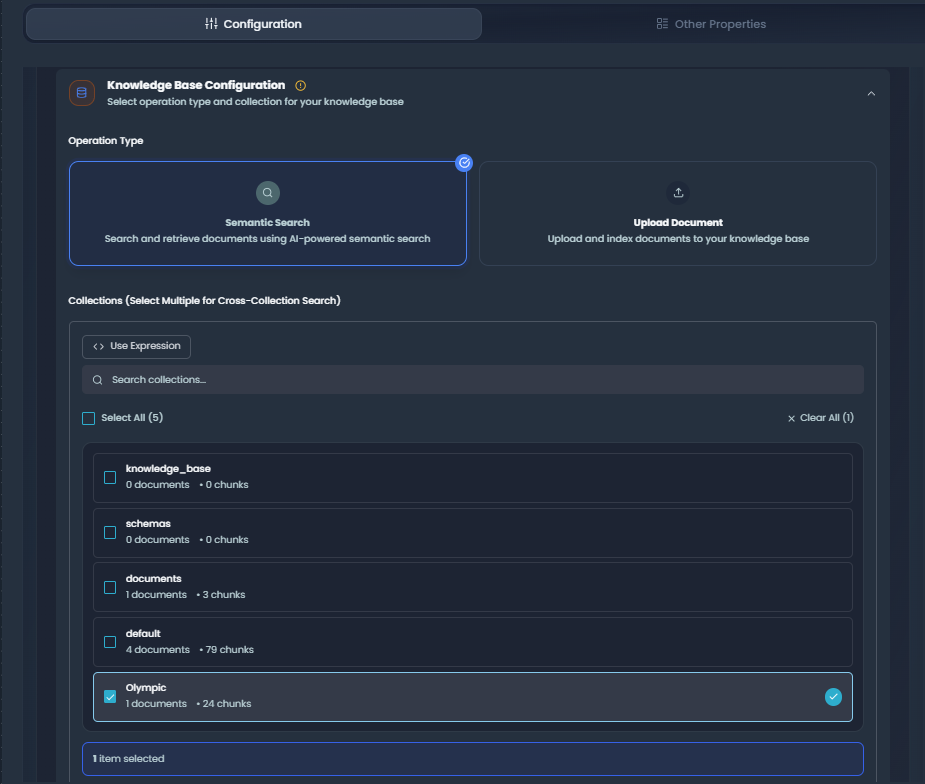
Select Semantic Search from the Operation dropdown to configure the node for document retrieval.
2. Collection Selection
Choose one or more collections to search across. The node supports multi-collection search, allowing you to query multiple knowledge bases simultaneously for comprehensive results.
- Multi-Select: Select 2 or more collections for cross-collection search
- Collection Details: View document count and chunk count for each collection
- Status Indicator: Shows "Fully Configured" when all settings are complete
3. Query Configuration
Enter your search query using natural language. The AI-powered semantic search understands context and intent, not just keywords.
Query Input:
- Natural language text (e.g., "How do I configure authentication in workflows?")
- Supports expression binding from upstream workflow variables
- Multi-line text area for complex queries
Example Queries:
What are the GDPR compliance requirements for data processing?
How do I implement OAuth 2.0 authentication?
What are best practices for error handling in API integrations?
4. Search Parameters
Fine-tune your search results using adjustable parameters:
Maximum Results (1-50, default: 10)
- Controls the number of search results returned
- Higher values provide more comprehensive results
- Lower values focus on top matches
Similarity Threshold (0.0-1.0, default: 0.7)
- Minimum confidence score for including results
- Higher thresholds (0.8-1.0) return only highly relevant matches
- Lower thresholds (0.5-0.7) return broader, more exploratory results
5. Advanced Metadata Filters (Optional)
Narrow search results by applying metadata filters across six categories. Filters use OR logic within categories and AND logic between categories.
Available Filter Categories:
- Schema Types
- Regulation Types
- Data Types
- Operations
- Workflow Complexity
- Workflow Domains
See the Metadata System section below for detailed filter options.
Example Filter Combination:
- Schema Type: API, Database
- Domain: Security, Web Development
- Result: Documents tagged with (API OR Database) AND (Security OR Web Development)
6. Document Selection (Optional)
Limit your search scope to specific documents within the selected collections for improved relevance and speed.
Features:
- Filter documents by name and metadata tags
- View document upload date, file size, and chunk count
- Group documents by collection for easier navigation
- Select All / Clear buttons for bulk operations
When to Use Document Selection
Narrowing to selected documents can improve relevance and search speed when you know which documents contain the information you need. Leave unselected to search across all documents in the chosen collections.
7. Test Execution
Execute a test search to preview results before deploying your workflow.
Test Results Display:
- Summary Tab: AI-generated summary with confidence score and key points
- Results Tab: Individual search results showing:
- Relevance score / match percentage
- Document content preview
- File name and collection
- Associated metadata tags
- Execution time tracking
- Error handling with clear messages
Configuration Guide: Upload Document
The Upload Document operation enables file upload with automatic chunking, embedding generation, and metadata tagging for enhanced organization.
1. Operation Selection
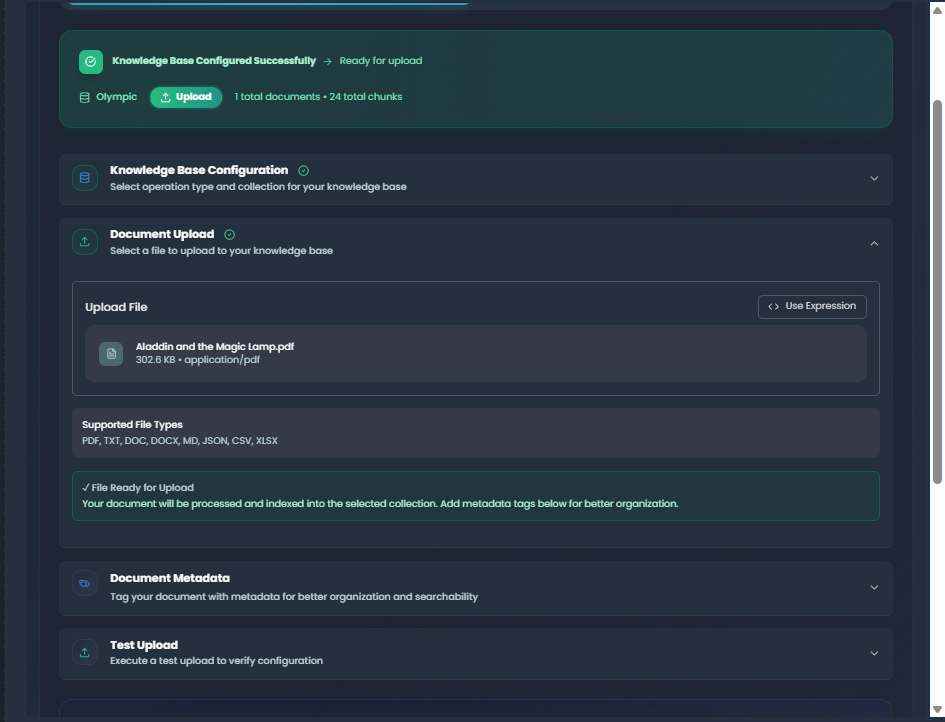
Select Upload Document from the Operation dropdown to configure the node for document indexing.
2. File Upload Zone
Upload files using drag-and-drop or click to select from your file system.
Supported File Formats:
| Format | Extensions | Max Size | Use Case |
|---|---|---|---|
| 10MB | Technical documentation, reports | ||
| Text | .txt | 10MB | Plain text documents, logs |
| Word | .doc, .docx | 10MB | Business documents, guides |
| Markdown | .md | 10MB | Technical documentation, README files |
| JSON | .json | 10MB | Configuration files, API responses |
| CSV | .csv | 10MB | Data tables, spreadsheets |
| Excel | .xlsx | 10MB | Business reports, data analysis |
Upload Process:
- Select or drag file to upload zone
- File is immediately uploaded to object storage
- File reference displays name, size, and type
- File is ready for indexing on workflow execution
3. Collection Selection
Choose a single collection to upload the document to. Unlike Semantic Search, document upload is restricted to one collection per operation.
- Single-Select: Choose one collection from the dropdown
- Collection Details: View current document count and chunk count
- Status Indicator: Shows configuration status
4. Metadata Tagging (Optional)
Add metadata tags to organize and enhance document searchability. Tags are applied during upload and can be used for filtering in future searches.
Available Metadata Categories:
- Schema Types (Database, API, Data Model, Scientific, Business)
- Regulation Types (GDPR, HIPAA, SOX, PCI DSS, CCPA, etc.)
- Data Types (Personal Data, Medical Records, Financial Data, etc.)
- Operations (Processing, Storage, Transmission, Collection, etc.)
- Workflow Complexity (Low, Medium, High, Enterprise)
- Workflow Domains (Healthcare, Finance, E-Commerce, Education, etc.)
All metadata fields are optional. See the Metadata System section for complete details.
Metadata Best Practices
Adding metadata during upload improves document discoverability in future searches. Consider your organization's taxonomy and how documents will be searched when selecting tags.
5. Test Execution
Execute a test upload to verify file processing before deploying your workflow.
Test Upload Display:
- Progress indicator (0-100%)
- Results include:
- Document ID
- File hash
- Chunks created count
- Processing time (in seconds)
- Success/error messages with clear feedback
Metadata System
The Knowledge Base node uses a comprehensive metadata system for both filtering searches and tagging uploads. Metadata is organized into six categories with predefined options.
Metadata Categories
| Category | Options | Use Case |
|---|---|---|
| Schema Types | Database, API, Data Model, Scientific, Business | Categorize technical documentation types |
| Regulation Types | GDPR, HIPAA, SOX, PCI DSS, CCPA, ISO 27001, FDA, FERPA, COPPA | Identify compliance frameworks and regulations |
| Data Types | Personal Data, Medical Records, Financial Data, Payment Data, Educational Records, Biometric Data, Location Data, Behavioral Data | Classify data sensitivity and privacy requirements |
| Operations | Processing, Storage, Transmission, Collection, Deletion, Reporting, Access, Modification | Define data handling operations covered |
| Workflow Complexity | Low, Medium, High, Enterprise (single-select) | Indicate complexity level of workflows |
| Workflow Domains | Healthcare, Finance, E-Commerce, Education, Manufacturing, Logistics, Research, Web Development, Data Science, Cybersecurity | Specify industry or functional domain |
Filter Logic
When using metadata filters in searches:
- Within Category: OR logic (e.g., selecting "API" and "Database" returns documents with either tag)
- Between Categories: AND logic (e.g., selecting "API" in Schema Types and "Security" in Domains returns documents with both tags)
Metadata and Search Quality
Adding comprehensive metadata during upload significantly improves search quality:
- Better Relevance: Metadata helps the AI understand document context
- Faster Filtering: Pre-tagged documents enable quick filtering
- Compliance: Regulatory tags help manage compliance requirements
- Organization: Domains and complexity tags improve knowledge organization
Use Case Examples
Example 1: Technical Documentation Search
Scenario: A workflow needs to find authentication configuration steps from technical documentation.
Configuration:
Operation: Semantic Search
Collections: Technical Docs, API Reference
Query: "How do I configure OAuth 2.0 authentication in REST APIs?"
Max Results: 10
Similarity Threshold: 0.75
Filters:
  - Schema Type: API
  - Domain: Web Development, Security
Expected Output:
- Relevant documentation sections about OAuth 2.0
- Configuration examples and code snippets
- Security best practices
- Relevance scores showing match confidence
Workflow Use: Retrieved information can be used to dynamically configure authentication in subsequent API calls or provide user guidance.
Example 2: Compliance Document Upload
Scenario: Automatically upload and index GDPR compliance documents with proper metadata.
Configuration:
Operation: Upload Document
File: GDPR_Data_Processing_Policy.pdf
Collection: Compliance Documents
Metadata:
  - Regulation Type: GDPR
  - Data Type: Personal Data
  - Operations: Processing, Storage, Deletion
  - Domain: Finance
- Complexity: EnterpriseResult:
- Document uploaded and chunked into searchable segments
- Metadata tags applied for future filtering
- Document indexed in Compliance Documents collection
- Available for semantic search with GDPR filter
Workflow Use: Compliance documents can be automatically uploaded from external sources (email, cloud storage) and indexed with consistent metadata.
Best Practices
Collection Organization
- Separate by Domain: Create separate collections for different domains (e.g., Technical, Legal, Business)
- Multi-Collection Search: Use multi-collection search for comprehensive queries across domains
- Single-Purpose Upload: Upload to specific collections to maintain organization
Metadata Tagging Guidelines
- Be Consistent: Use the same metadata scheme across similar documents
- Tag Generously: Add multiple relevant tags to improve discoverability
- Review Periodically: Audit metadata tags to ensure they remain accurate and useful
- Use All Categories: Don't limit yourself to one or two categories
Search Query Optimization
- Use Natural Language: Write queries as questions or statements, not just keywords
- Be Specific: More specific queries return more relevant results
- Adjust Threshold: Start with 0.7 similarity threshold and adjust based on result quality
- Limit Results: Use fewer max results (5-15) for focused queries
File Preparation Tips
- Clean Text: Ensure documents have clean, readable text (especially for PDFs)
- Appropriate Size: Keep files under 10MB for optimal processing
- Meaningful Names: Use descriptive filenames for easier identification
- Structured Content: Well-structured documents (headings, sections) chunk better
Troubleshooting
| Issue | Possible Cause | Solution |
|---|---|---|
| No search results returned | Similarity threshold too high or no matching documents | Lower similarity threshold to 0.5-0.6, broaden query, or remove metadata filters |
| Search results not relevant | Query too broad or similarity threshold too low | Make query more specific, increase similarity threshold, or add metadata filters |
| File upload fails | File size exceeds 10MB or unsupported format | Check file size and format, compress large files, or convert to supported format |
| Upload processing slow | Large file or complex document structure | Allow additional processing time, simplify document structure, or split into smaller files |
| Collection not visible | Collection not created or permissions issue | Verify collection exists in knowledge base settings, check user permissions |
Next Steps
- Collection Management: Learn how to create and manage knowledge base collections in the Knowledge Base section
- Working with Data: Use dynamic expressions in queries and metadata with the Working with Data guide
- Workflow Integration: Combine with other integration nodes like HTTP Request and Router
- Document Processing: Understand chunking strategies and vector stores in Document Processing