A2A Agent
Enable agent-to-agent communication and orchestration across workflows
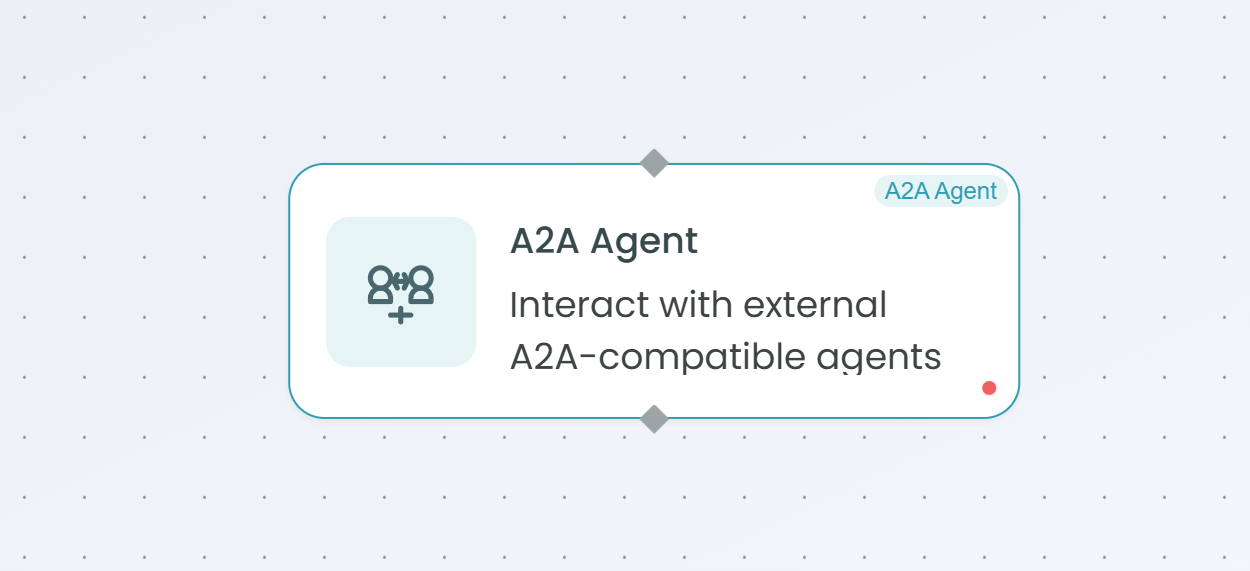
The A2A (Agent-to-Agent) Agent node enables communication and orchestration between different agents across workflows. This powerful node allows workflows to discover, execute, monitor, and control other agents in the FlowGenX ecosystem, enabling complex multi-agent architectures and distributed task execution.
Why Use A2A Agent?
The A2A Agent is ideal when you need to:
- Orchestrate multiple agents - Coordinate execution across different agents in separate workflows
- Discover agent capabilities - Query available agents and their capabilities from the registry
- Execute remote agents - Trigger and run agents in other workflows synchronously or asynchronously
- Monitor agent tasks - Check the status of running agent tasks
- Manage agent lifecycle - Send messages to running agents or cancel their execution
- Build distributed systems - Create complex multi-agent systems with specialized workflows
- Enable agent collaboration - Allow agents to delegate work to other specialized agents
How It Works
The A2A Agent node provides multiple operations for inter-agent communication:
- Discovery - Find and inspect available agents in the registry
- Synchronous Execution - Execute an agent and wait for the complete result
- Asynchronous Execution - Start an agent task and continue workflow execution
- Message Passing - Send messages to running agent tasks for human-in-the-loop interactions
- Status Monitoring - Check the current status of executing agent tasks
- Task Cancellation - Stop running agent tasks when needed
When to Use A2A Agent
Use A2A Agent when:
- You need to coordinate multiple specialized workflows
- Tasks require capabilities from different agent implementations
- You want to build modular, reusable agent workflows
- You need asynchronous task execution across workflows
- You're implementing human-in-the-loop patterns with agent communication
- You need to monitor and control long-running agent tasks
- You're building complex multi-agent orchestration systems
Configuration Steps
Setting up the A2A Agent involves 4 main configuration areas: Operation, Task, Advanced, and Settings. The available configuration options vary based on the selected operation type.

Step 1: Operation Configuration
The Operation tab is where you select the type of agent-to-agent interaction you want to perform.
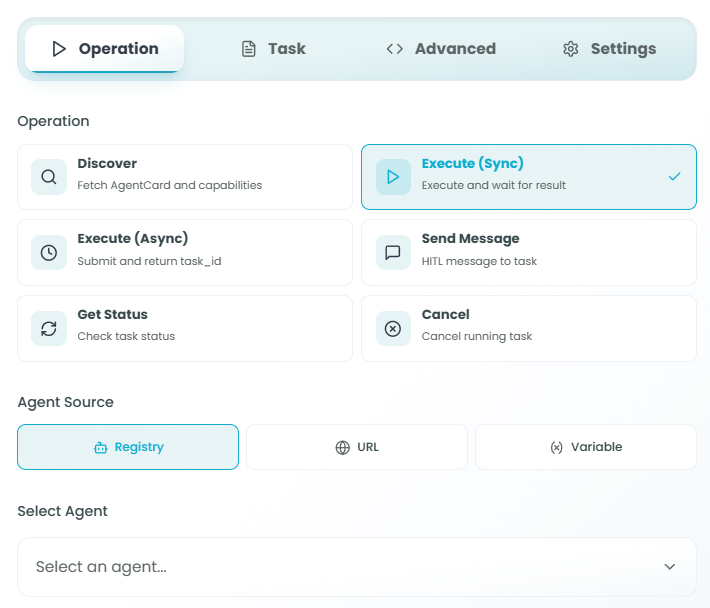
Operation Types:
Choose from six different operation types based on your needs:
1. Discover
Purpose: Fetch AgentCard and capabilities
Discover allows you to query the agent registry to find available agents and retrieve their capabilities, inputs, outputs, and metadata.
Use Cases:
- Browse available agents in the registry
- Inspect agent capabilities before execution
- Dynamic agent selection based on capabilities
- Building agent discovery interfaces
2. Execute (Sync)
Purpose: Execute and wait for result
Execute (Sync) runs the selected agent and waits for the complete execution to finish before continuing the workflow. The workflow blocks until the agent returns a result.
Use Cases:
- When you need immediate results from another agent
- Sequential workflows where the next step depends on agent output
- Simple agent delegation with blocking execution
- When result data is required for subsequent workflow steps
3. Execute (Async)
Purpose: Submit and return task_id
Execute (Async) starts the agent execution and immediately returns a task ID, allowing your workflow to continue without waiting. You can later check the status or retrieve results using the task ID.
Use Cases:
- Long-running agent tasks
- Parallel agent execution
- Fire-and-forget agent delegation
- When you need to continue workflow execution immediately
- Building responsive workflows that don't block on agent completion
4. Send Message
Purpose: HITL message to task
Send Message allows you to send human-in-the-loop (HITL) messages to a running agent task, typically to provide input or respond to agent requests.
Use Cases:
- Providing user input to waiting agents
- Human-in-the-loop workflows
- Responding to agent questions or requests
- Interactive agent conversations
Note: This operation requires a task ID and does not show Agent Source or Select Agent options.
5. Get Status
Purpose: Check task status
Get Status retrieves the current status of an asynchronously executing agent task using its task ID.
Use Cases:
- Monitoring long-running agent tasks
- Polling for task completion
- Checking if an agent is still running
- Retrieving intermediate status updates
Note: This operation requires a task ID and does not show Agent Source or Select Agent options.
6. Cancel
Purpose: Cancel running task
Cancel stops a currently executing agent task using its task ID.
Use Cases:
- Stopping long-running tasks that are no longer needed
- Implementing task timeouts
- User-initiated task cancellation
- Cleaning up failed or stuck agent executions
Note: This operation requires a task ID and does not show Agent Source or Select Agent options.
Agent Source Configuration (for Discover, Execute Sync, Execute Async):
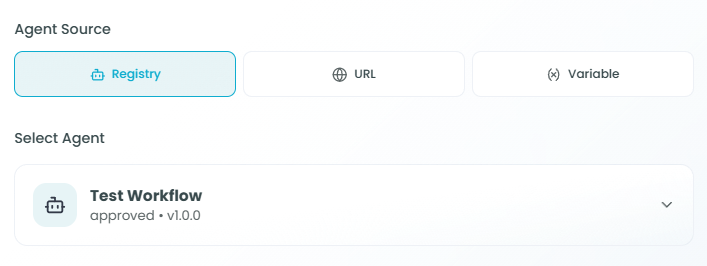
When using Discover, Execute (Sync), or Execute (Async) operations, you must specify where the agent comes from:
-
Registry - Select from registered agents in the FlowGenX agent registry
- Browse approved and versioned agents
- See agent metadata and version information
- Most common and recommended option
-
URL - Provide a direct URL to an agent endpoint
- Connect to agents not in the registry
- Use external agent implementations
- Specify custom agent URLs
-
Variable - Use a variable containing the agent reference
- Dynamic agent selection at runtime
- Programmatically choose agents based on workflow logic
- Pass agent references from previous workflow steps
Select Agent:
When using Registry as the Agent Source, select the specific agent from the dropdown:
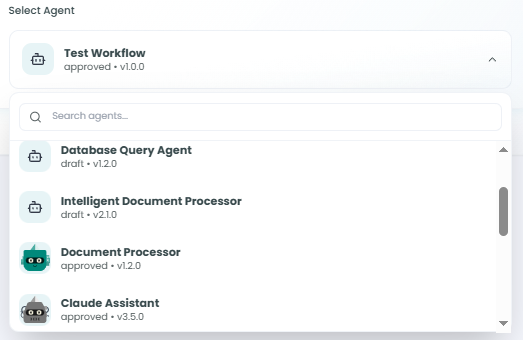
Agents display:
- Agent name (e.g., "Test Workflow")
- Approval status ("approved")
- Version (e.g., "v1.0.0")
Task ID Variable (for Send Message, Get Status, Cancel):
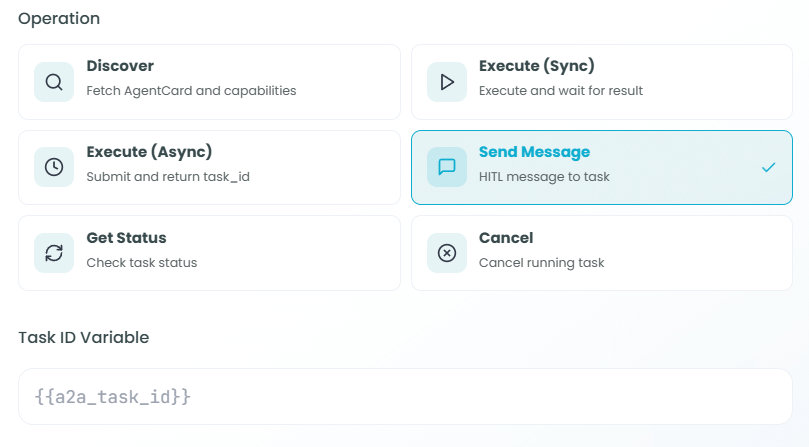
When using Send Message, Get Status, or Cancel operations, you must provide the Task ID Variable:
- Reference the task ID from a previous Execute (Async) operation
- Use variable syntax:
{{a2a_task_id}}or{{variable_name}} - The task ID identifies which agent task to interact with
- Required for all task management operations
Step 2: Task Configuration
The Task tab allows you to define the goal and initial message for the agent execution.
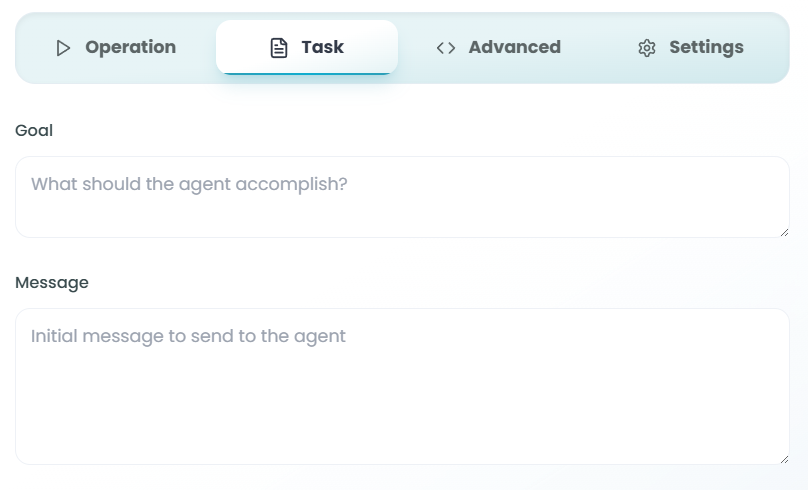
Task Configuration Fields:
Goal:
- Question: "What should the agent accomplish?"
- Purpose: Define the objective or task for the remote agent
- Input: Natural language description of what you want the agent to do
- Examples:
- "Analyze the customer feedback and extract sentiment scores"
- "Generate a summary report of the sales data"
- "Process the uploaded documents and extract key information"
- "Validate the user input against business rules"
Message:
- Question: "Initial message to send to the agent"
- Purpose: Provide the starting context or data for the agent
- Input: Natural language message with relevant information
- Examples:
- "Here is the customer feedback data: [data]"
- "Please process the following order: [order details]"
- "User request: [user input]"
- "Context: [background information]"
Best Practices:
- Be specific and clear in your goal definition
- Provide all necessary context in the message
- Use variables to pass dynamic data:
{{variable_name}} - Structure your message to match the agent's expected input format
- Include relevant metadata or parameters the agent needs
Step 3: Advanced Configuration
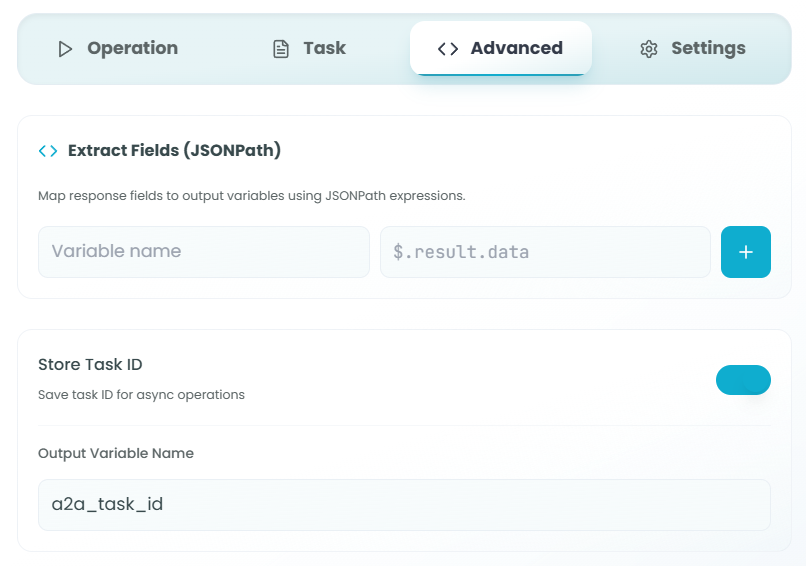
The Advanced tab provides options for passing additional context, extracting response data, and managing task IDs.
Context Data (JSON):
- Purpose: Additional context to pass to the agent
- Format: Must be valid JSON
- Use Cases:
- Providing configuration parameters to the agent
- Passing structured data that supplements the message
- Including metadata or headers
- Sending authentication tokens or credentials
Example:
{
  "userId": "12345",
  "sessionId": "abc-xyz",
  "preferences": {
    "language": "en",
    "timezone": "UTC"
  }
}
Extract Fields (JSONPath):
- Purpose: Map response fields to output variables using JSONPath expressions
- How it works:
- Variable name: The output variable to create
- JSONPath: The path to extract from the agent's response
- Add multiple field extractions with the + button
Examples:
- Variable:
result_data, JSONPath:$.result.data - Variable:
status, JSONPath:$.status - Variable:
error_message, JSONPath:$.error.message - Variable:
items, JSONPath:$.response.items[*]
Store Task ID:
- Purpose: Save task ID for async operations
- Toggle: Enable to store the task ID from Execute (Async) operations
- Output Variable Name: Name of the variable to store the task ID
- Default:
a2a_task_id - Customize for multiple async agent calls
- Use this task ID in subsequent Send Message, Get Status, or Cancel operations
- Default:
When to Enable:
- Always enable for Execute (Async) operations if you need to check status later
- Enable if you might need to send messages to the task
- Enable if you might need to cancel the task
- Disable for Execute (Sync) operations (not applicable)
Step 4: Settings Configuration
The Settings tab configures timeout, retry behavior, and special handling options.
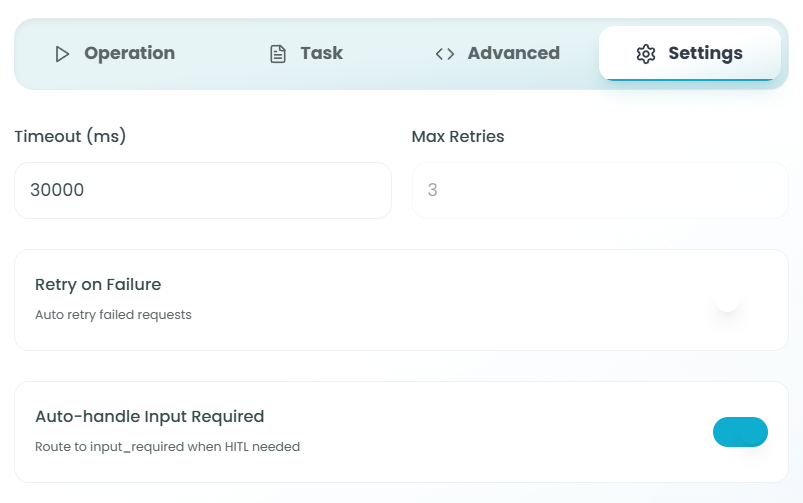
Timeout (ms):
- Purpose: Maximum time to wait for agent response
- Default: 30000 (30 seconds)
- Format: Milliseconds
- Considerations:
- Set longer timeouts for complex agent tasks
- Set shorter timeouts for quick operations
- Balance between responsiveness and allowing enough time
- Timeout triggers failure handling (retries or error)
Max Retries:
- Purpose: Number of times to retry failed requests
- Default: 3
- Range: 0 to unlimited (practical limit around 5-10)
- Behavior:
- Automatically retries on network errors or timeouts
- Retries on agent execution failures (if retry enabled)
- Each retry uses the same timeout setting
- All retries exhausted leads to workflow error
Retry on Failure:
- Toggle: Auto retry failed requests
- Purpose: Automatically retry when agent execution fails
- When Enabled:
- Retries up to Max Retries times
- Applies to all failure types (network, timeout, agent errors)
- Useful for transient failures
- When Disabled:
- Fails immediately on first error
- No automatic retry attempts
- Workflow error handling takes over
Auto-handle Input Required:
- Toggle: Route to input_required when HITL needed
- Purpose: Automatically handle human-in-the-loop (HITL) scenarios
- When Enabled:
- Detects when remote agent needs human input
- Routes workflow to a special
input_requiredpath - Allows you to build HITL handling logic
- Can use Send Message operation to provide input
- When Disabled:
- Agent waits indefinitely for input (may timeout)
- No automatic HITL routing
- Standard execution flow only
Use Cases for Auto-handle Input Required:
- Building interactive agent workflows
- Handling approval workflows
- Collecting user feedback mid-execution
- Implementing dynamic decision points
Using the A2A Agent in Your Workflow
After configuration is complete, the A2A Agent enables various inter-agent communication patterns:
Synchronous Agent Execution
Workflow → A2A Agent (Execute Sync) →
Wait for remote agent completion →
Receive result → Continue workflow
Use for: Simple agent delegation where you need immediate results
Asynchronous Agent Execution
Workflow → A2A Agent (Execute Async) →
Receive task_id → Continue workflow →
... (later) ...
A2A Agent (Get Status) with task_id →
Check completion → Retrieve results
Use for: Long-running tasks, parallel execution, non-blocking workflows
Human-in-the-Loop Pattern
Workflow → A2A Agent (Execute Async) →
Receive task_id → Continue workflow →
... (agent requests input) ...
Auto-handle Input Required triggers →
Route to HITL handler →
A2A Agent (Send Message) with task_id and user input →
Agent continues with input →
A2A Agent (Get Status) → Retrieve final result
Use for: Interactive workflows, approval processes, user input collection
Agent Discovery and Dynamic Execution
Workflow → A2A Agent (Discover) →
Browse available agents → Select agent based on capabilities →
A2A Agent (Execute) with selected agent →
Process results
Use for: Dynamic agent selection, capability-based routing, agent marketplaces
Best Practices
Operation Selection
- Use Discover when you need to find agents or inspect capabilities
- Use Execute (Sync) for simple, blocking agent calls with immediate results
- Use Execute (Async) for long-running tasks or when you need workflow to continue
- Use Send Message only for HITL scenarios with running agents
- Use Get Status to poll for async task completion or monitor progress
- Use Cancel to stop long-running tasks that are no longer needed
Agent Source Strategy
- Prefer Registry for production workflows with versioned, approved agents
- Use URL for development, testing, or external agent integrations
- Use Variable for dynamic agent selection based on runtime logic
Task Configuration
- Be explicit in goals - Clearly state what the agent should accomplish
- Provide sufficient context - Include all necessary data in the message
- Use structured data - Pass complex data via Context Data (JSON)
- Validate inputs - Ensure data passed to agents is correct and complete
Async Operations
- Always store task IDs - Enable "Store Task ID" for async executions
- Use descriptive variable names - Name task IDs clearly for multiple async calls
- Implement status polling - Regularly check status for long-running tasks
- Handle timeouts gracefully - Set appropriate timeouts for async operations
- Plan for cancellation - Build workflows that can cancel unnecessary tasks
Error Handling
- Set appropriate retries - Use 2-3 retries for network-prone operations
- Configure realistic timeouts - Balance responsiveness with execution time needs
- Enable auto-handle HITL - For workflows that might require human input
- Test failure scenarios - Verify retry and error handling behavior
Performance Optimization
- Use async for parallel execution - Start multiple agents simultaneously
- Batch agent calls - Group related agent executions when possible
- Cache discovery results - Don't repeatedly discover the same agents
- Monitor agent performance - Track execution times and optimize slow agents
Common Use Cases
Multi-Agent Workflows:
- Orchestrate specialized agents for different tasks
- Example: Data extraction agent → Processing agent → Reporting agent
Distributed Task Processing:
- Execute long-running tasks asynchronously across multiple agents
- Example: Video processing, large dataset analysis, batch operations
Agent Marketplace Integration:
- Discover and execute third-party agents from a marketplace
- Example: Find translation agent → Execute with document → Return translated content
Human-in-the-Loop Workflows:
- Start agent task → Agent requests approval → Send approval message → Continue execution
- Example: Document review, expense approval, compliance checking
Dynamic Agent Selection:
- Choose agents at runtime based on input data or business logic
- Example: Route customer requests to specialized support agents based on issue type
Parallel Agent Execution:
- Start multiple async agents and aggregate results
- Example: Run sentiment analysis, entity extraction, and summarization in parallel
Agent Monitoring and Control:
- Start background agent tasks and monitor their progress
- Example: Long-running data pipeline with status checks and optional cancellation
Troubleshooting
Agent Not Found:
- Verify agent is registered in the registry
- Check agent name and version are correct
- Ensure you have permissions to access the agent
- Try using Discover operation to list available agents
Timeout Errors:
- Increase timeout value in Settings tab
- Check if remote agent is experiencing issues
- Verify network connectivity
- Consider using Execute (Async) for long-running tasks
Task ID Not Found:
- Ensure task ID variable name matches the stored task ID
- Verify the async execution completed successfully
- Check variable syntax:
{{variable_name}} - Confirm Store Task ID was enabled for the async execution
HITL Messages Not Working:
- Verify Auto-handle Input Required is enabled
- Check task is actually in an input_required state
- Ensure task ID is correct
- Verify message format matches agent's expectations
Agent Execution Failures:
- Check Goal and Message are properly formatted
- Verify Context Data is valid JSON
- Review agent logs for specific errors
- Test agent independently to confirm it's working
- Check if agent requires specific input format
JSONPath Extraction Errors:
- Validate JSONPath syntax
- Check the actual response structure from the agent
- Test JSONPath expressions with sample response data
- Ensure the path exists in the response
Monitoring A2A Agent Executions
Monitor your A2A Agent interactions:
- Track execution patterns - Understand which agents are called most frequently
- Measure latency - Monitor time taken for agent communications
- Monitor success rates - Track successful vs failed agent executions
- Analyze async task lifecycles - Review how long tasks take from start to completion
- Review HITL interactions - Understand human input patterns and timing
- Identify bottlenecks - Find slow or unreliable remote agents
For more information on monitoring workflow executions, see the Traceability documentation.
A2A Agent vs Direct Agent Nodes
Use A2A Agent when:
- You need to execute agents in other workflows
- You want to reuse existing agent implementations
- You need asynchronous or distributed execution
- You're building multi-agent orchestration systems
- You need to discover agents dynamically
- You want to manage task lifecycle (status, cancel)
Use Direct Agent Nodes (React Agent, Supervisor Agent) when:
- The agent logic is part of the current workflow
- You need immediate, inline agent execution
- You want full control over agent configuration
- The agent is specific to this workflow
- You don't need cross-workflow communication
Next Steps
After setting up your A2A Agent:
- Choose the appropriate operation type for your use case
- Configure agent source and select the target agent (or provide task ID)
- Define the goal and message for agent execution
- Set up advanced options (context data, field extraction, task ID storage)
- Configure timeout and retry settings
- Test the agent communication in the Playground
- Monitor execution and adjust configuration as needed
- Build error handling and retry logic into your workflow
The A2A Agent node enables powerful distributed agent architectures in FlowGenX, allowing you to build modular, reusable, and scalable multi-agent systems that span across workflows and leverage specialized agent capabilities throughout your organization.