MCP Server
Connect to Model Context Protocol servers to access collections of tools
The MCP Server node enables connection to Model Context Protocol (MCP) servers, which provide collections of related tools. Unlike the MCP Tool node that configures individual tools, the MCP Server node allows you to connect to an entire server and select multiple tools at once, making it ideal for providing comprehensive functionality to your agents. MCP servers bundle related tools together, offering complete toolsets for specific domains or use cases.
Why Use MCP Server?
The MCP Server is ideal when you need to:
- Access multiple tools efficiently - Select multiple or all tools from a server in a single configuration
- Provide comprehensive capabilities - Give agents access to complete toolsets for complex, multi-faceted tasks
- Simplify configuration - Connect once to access many tools instead of configuring each individually
- Use bundled functionality - Leverage pre-configured sets of tools designed to work together
- Enable domain expertise - Provide agents with specialized tool collections for specific domains
- Streamline tool management - Manage authentication and configuration at the server level for all tools
How It Works
MCP Servers provide collections of tools through a standardized protocol:
- Server Connection - Establish connection to an MCP server endpoint
- Tool Discovery - Automatically discover all tools provided by the server
- Bulk Selection - Select multiple tools or all tools at once
- Agent Access - Connected agents can use any selected tool from the server
- Centralized Management - Manage authentication and configuration at the server level
- Unified Context - All tools share the same server context and credentials
When to Use MCP Server
Use MCP Server when:
- You need multiple related tools from the same source
- You want to provide agents with comprehensive toolsets
- All or most tools from a server are relevant to your workflow
- You prefer centralized tool management with one configuration
- You're connecting to domain-specific tool collections
- You want to simplify setup compared to adding many individual tools (use MCP Tool for single tools)
Configuration Steps
Setting up an MCP Server involves selecting the server source, choosing which tools to make available, and reviewing the tools summary.
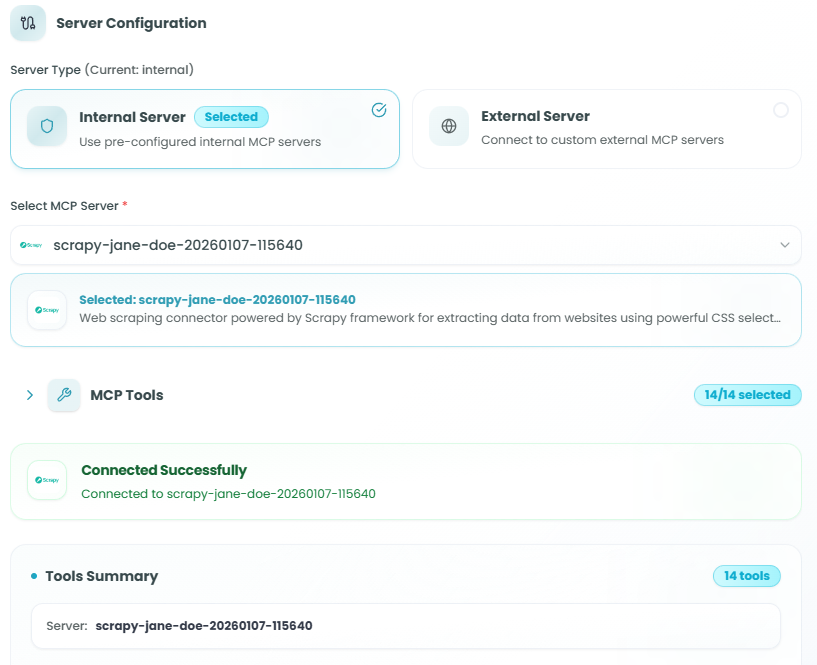
Step 1: Server Configuration
First, choose where your MCP server is hosted - either internal pre-configured servers or external custom servers.
Server Type:
Choose between two server types:
-
Internal Server (Recommended) - Use pre-configured internal MCP servers
- Ready-to-use servers provided by FlowGenX platform
- No additional configuration required
- Pre-tested and verified tool collections
- Managed authentication and credentials
- Regularly maintained and updated
- Ideal for most use cases
-
External Server - Connect to custom external MCP servers
- Connect to your own MCP server implementations
- Use third-party MCP servers from the community
- Requires server URL and authentication configuration
- Useful for custom integrations and specialized tools
- Full control over server implementation
Step 2: Select MCP Server
After choosing the server type, select the specific MCP server you want to connect to.
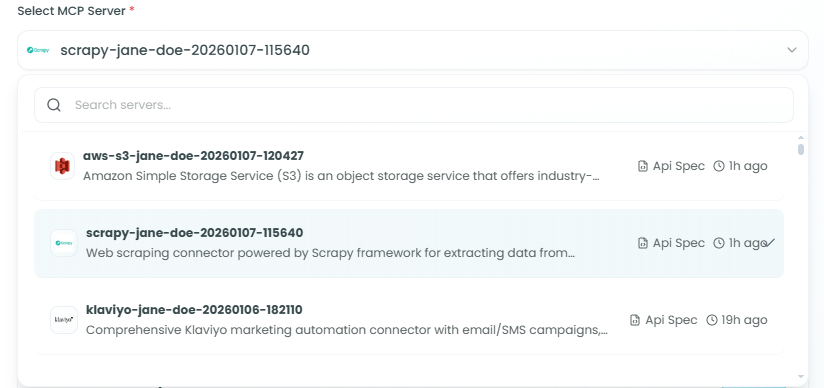
Selecting from Internal Servers:
- Click on the Select MCP Server dropdown
- Browse available internal MCP servers
- Each server displays:
- Server name and unique identifier
- Comprehensive description of the server's purpose and capabilities
- Icon or logo for easy identification
Example Server:
- scrapy-jane-doe-20260107-115640
- Description: "Web scraping connector powered by Scrapy framework for extracting data from websites using powerful CSS selectors..."
- Provides a complete suite of web scraping and data extraction tools
Once selected, the server information is displayed with its full description, helping you understand the complete set of tools it provides.
Step 3: Select MCP Tools
The key advantage of the MCP Server node is the ability to select multiple tools from the server at once. This step shows all available tools and lets you choose which ones to make available to your agents.
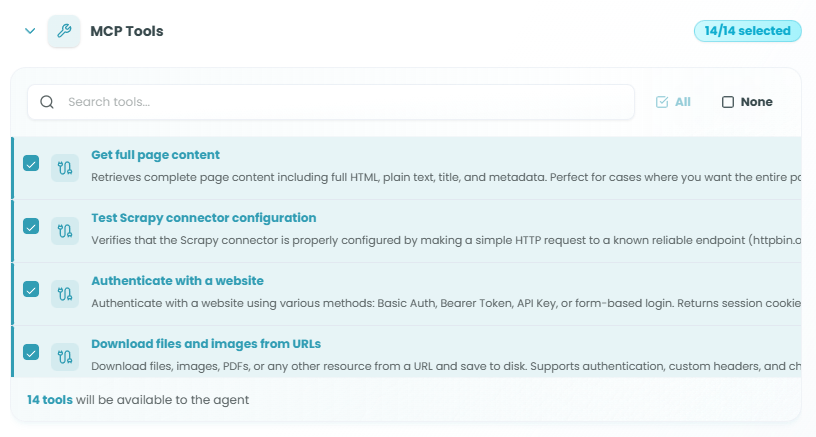
MCP Tools Selection Interface:
The tools selection interface provides powerful features for managing multiple tools:
Selection Controls:
- Search tools - Use the search bar to filter tools by name or description
- All - Select all available tools from the server with one click
- None - Deselect all tools to start fresh
- 14/14 selected - Counter showing how many tools are currently selected
Tool List:
Each tool in the list displays:
- Checkbox - Select or deselect individual tools
- Tool Icon - Visual identifier for the tool type
- Tool Name - Clear, descriptive name of the tool
- Tool Description - Detailed explanation of what the tool does
Example Tools from Scrapy Server:
- ✓ Test Scrapy connector configuration - Verifies that the Scrapy connector is properly configured
- ✓ Authenticate with a website - Authenticate with a website using various methods: Basic Auth, Bearer Token, API Key, or form-based login
- ✓ Download files and images from URLs - Download files, images, PDFs, or any other resource from a URL and save to disk
- ✓ Submit a form or make a POST request - Submit forms or make POST requests to websites with form data or JSON payload
- ✓ Extract all links from a webpage - Extracts all links from a webpage
Selection Counter: At the bottom of the tool list, you'll see a message indicating how many tools will be available:
- "14 tools will be available to the agent"
Connection Status:
Once tools are selected, a Connected Successfully status appears, showing:
- Confirmation that the server connection is established
- The server name you're connected to
Step 4: Tools Summary
After selecting your tools, the Tools Summary section displays comprehensive information about your configuration.
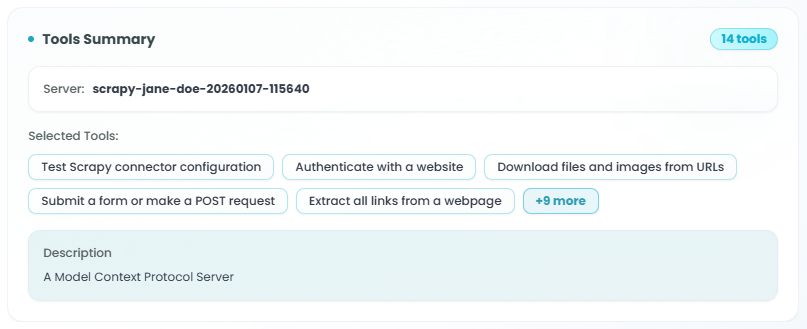
Tools Summary Information:
-
Server - The MCP server providing these tools
- Example: "scrapy-jane-doe-20260107-115640"
-
Tool Count - Number of tools selected
- Displayed as a badge (e.g., "14 tools")
-
Selected Tools - Visual representation of all selected tools
- First few tools shown as individual tags/chips
- Tool names displayed clearly
- "+9 more" indicator when there are many tools selected
- Example tools shown:
- Test Scrapy connector configuration
- Authenticate with a website
- Download files and images from URLs
- Submit a form or make a POST request
- Extract all links from a webpage
- +9 more
-
Description - Server description
- Example: "A Model Context Protocol Server"
This summary provides a complete overview of what tools are configured and ready for use by your agents.
Connecting to Agents
Once configured, the MCP Server node can be connected to agents in your workflow to make all selected tools available.
Connecting to React Agent
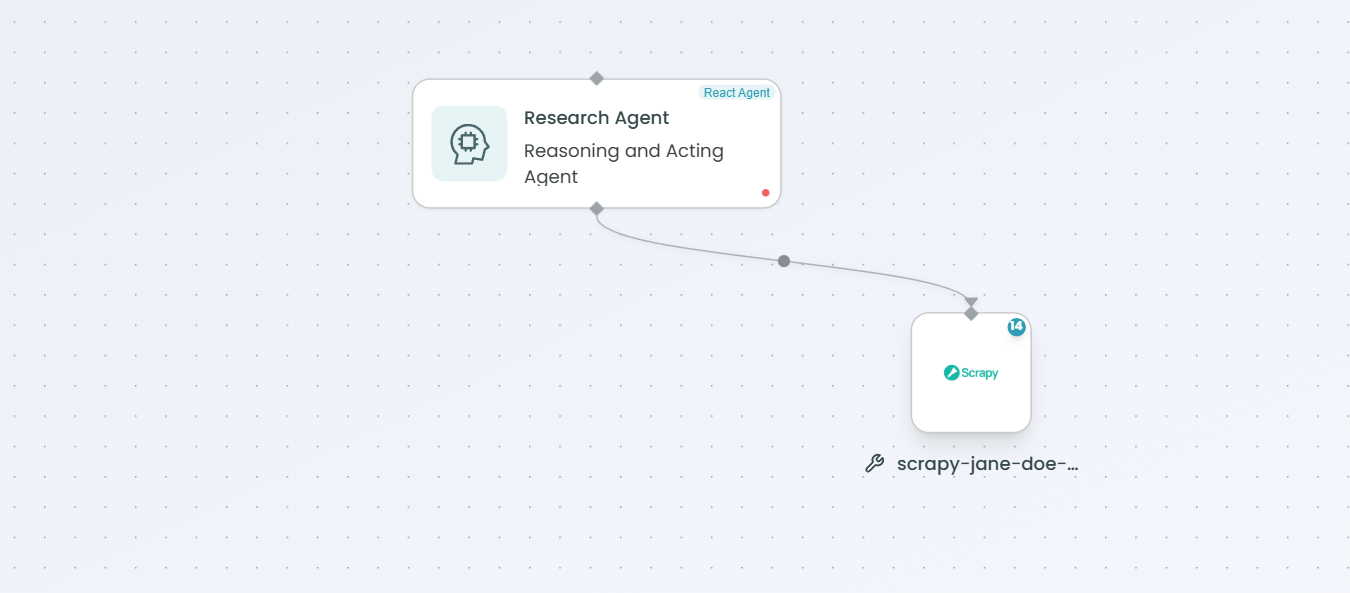
To connect the MCP Server to a React Agent:
- Add both MCP Server node and React Agent node to your workflow
- Draw a connection from the MCP Server to the React Agent
- The React Agent will automatically detect all selected tools
- Update the React Agent's prompt to explain the available tools and when to use them
- The agent can now invoke any of the tools during execution
Benefits for React Agent:
- Agent gains access to a complete toolset for comprehensive task handling
- Multiple related tools enable complex, multi-step operations
- Unified server context ensures consistent tool behavior
- Agent can choose the most appropriate tool for each subtask
- Reduces configuration overhead compared to adding tools individually
For detailed information on configuring React Agents, see the React Agent documentation.
Connecting to Supervisor Agent
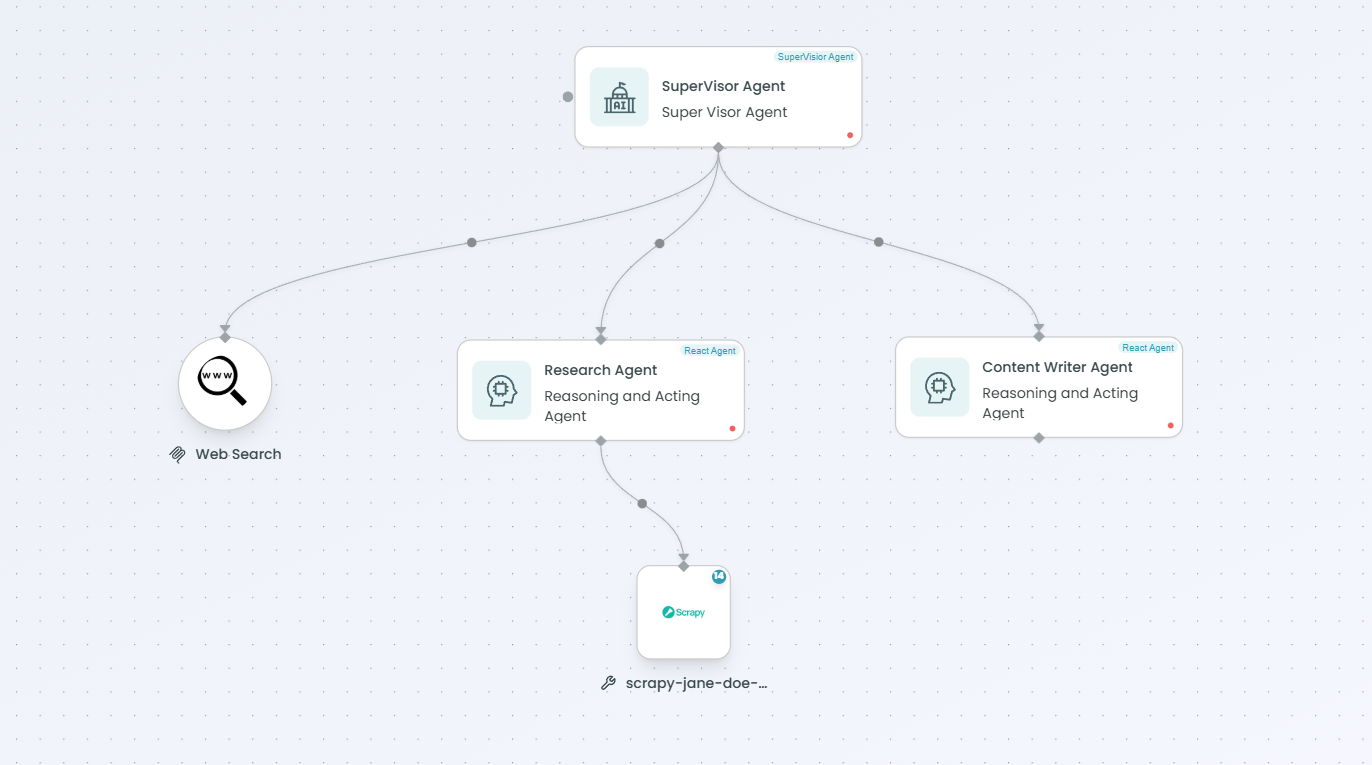
To connect the MCP Server to a Supervisor Agent:
- Add both MCP Server node and Supervisor Agent node to your workflow
- Draw a connection from the MCP Server to the Supervisor Agent
- The Supervisor Agent will detect all selected tools and can delegate their use
- Update the Supervisor's prompt to explain the tool collection and orchestration strategy
- The supervisor can invoke tools directly or coordinate their use across child agents
Benefits for Supervisor Agent:
- Supervisor can orchestrate usage of multiple related tools
- Complete toolsets enable sophisticated multi-tool workflows
- Supervisor can delegate specific tools to child agents
- Enables complex problem-solving with comprehensive tool access
- Centralized tool management for the entire agent hierarchy
For detailed information on configuring Supervisor Agents, see the Supervisor Agent documentation.
Using the MCP Server in Your Workflow
After configuration and connection:
- The MCP Server node appears in your workflow canvas
- All selected tools are available to connected agents
- Agents can discover and choose from the available tools based on their needs
- When an agent invokes a tool, it calls the MCP server with appropriate parameters
- The server executes the tool's function
- Results are returned to the agent for processing
- The workflow continues with enriched data from multiple tool invocations
Multi-Tool Workflow Example:
Agent receives complex task →
Determines multiple tools needed →
Invokes Tool 1 (e.g., Authenticate) →
Invokes Tool 2 (e.g., Extract data) →
Invokes Tool 3 (e.g., Download files) →
Processes all results →
Generates comprehensive response
Best Practices
Server Selection
- Choose appropriate servers - Select servers whose tools match your workflow domain
- Prefer internal servers - Use internal servers when available for easier management
- Understand server purpose - Review server descriptions to ensure alignment with your needs
- Check server reliability - Ensure servers are stable and well-maintained
- Consider tool count - Servers with 10-20 tools are often ideal for comprehensive functionality
Tool Selection
- Select relevant tools - Choose tools that align with your workflow requirements
- Use "All" judiciously - Select all tools only when all are truly needed
- Review tool descriptions - Understand what each tool does before selection
- Balance quantity and focus - More tools provide flexibility but may overwhelm agents
- Deselect unused tools - Remove tools that don't serve your specific use case
Agent Integration
- Document tool collections - Clearly explain the available toolset in agent prompts
- Provide usage guidelines - Explain when to use which tools
- Group related tools - Help agents understand how tools work together
- Set tool priorities - Guide agents on which tools to prefer for specific tasks
- Include examples - Show multi-tool workflow examples in prompts
Configuration Management
- Validate server connection - Verify "Connected Successfully" status before deployment
- Review tools summary - Check the summary to confirm all intended tools are selected
- Test tool invocation - Verify tools work correctly in the Playground
- Monitor server status - Track server availability and performance
- Update as needed - Adjust tool selection based on actual usage patterns
Common Use Cases
Comprehensive Web Scraping:
- Connect Scrapy server with all scraping tools
- Agent can authenticate, extract data, download files, and submit forms
- Complete web automation in a single workflow
- Example: Scrape product data, download images, extract reviews
Multi-Step API Workflows:
- Server providing authentication, CRUD operations, and data transformation tools
- Agent orchestrates complete API interactions
- Example: Login, fetch data, process, update records
Document Processing Pipeline:
- Server with tools for reading, parsing, extracting, and transforming documents
- Agent handles end-to-end document workflows
- Example: Read PDF, extract tables, convert formats, generate summaries
Data Integration and ETL:
- Server providing extraction, transformation, validation, and loading tools
- Agent coordinates complete data pipeline
- Example: Extract from source, transform data, validate quality, load to destination
Content Management:
- Server with tools for creating, updating, searching, and publishing content
- Agent manages content lifecycle
- Example: Create articles, add metadata, upload media, publish to CMS
Troubleshooting
Server Not Connecting:
- Verify server type is correct (Internal vs External)
- Check server availability and status
- Ensure network connectivity for external servers
- Review authentication credentials for external servers
- Try reconnecting or selecting a different server
Tools Not Appearing:
- Verify server connection is successful ("Connected Successfully" status)
- Refresh the tool list by reselecting the server
- Check server logs for tool discovery issues
- Ensure the server is properly configured with tools
Agent Not Using Tools:
- Verify MCP Server node is connected to the agent
- Ensure tools are selected (check the counter, e.g., "14/14 selected")
- Update agent prompt to mention available tools
- Provide clear instructions on when to use each tool
- Check agent logs to see if tools are being discovered
Tool Invocation Failing:
- Validate tool parameters are correct
- Check server connectivity and status
- Verify server has necessary permissions
- Review tool-specific error messages
- Test individual tools to isolate issues
Too Many Tools Overwhelming Agent:
- Reduce the number of selected tools
- Keep only the most relevant tools for your use case
- Provide clearer guidance in agent prompts
- Consider using multiple MCP Tool nodes for better control
- Group tools by category in your prompt instructions
Monitoring Server and Tool Usage
Monitor your MCP Server performance:
- Track server uptime - Ensure consistent server availability
- Monitor tool invocation patterns - Understand which tools are most used
- Measure success rates - Track successful vs failed tool calls
- Analyze response times - Monitor tool execution performance
- Review agent behavior - Understand how agents choose between tools
- Identify unused tools - Remove or adjust tools that are never invoked
For more information on monitoring workflow executions, see the Traceability documentation.
MCP Server vs MCP Tool
Use MCP Server when:
- You need multiple tools from the same server
- You want to provide comprehensive toolsets
- All or most tools from a server are relevant
- You prefer centralized configuration and management
- You're building complex workflows requiring many related tools
- You want to simplify setup with bulk tool selection
Use MCP Tool when:
- You need one or a few specific tools
- You want granular control over individual tool access
- Different agents need different specific tools
- You're building focused, specialized workflows
- You want to avoid overwhelming agents with too many options
Comparison Example:
Web Scraping Workflow:
- MCP Server: Connect Scrapy server with 14 tools for comprehensive scraping capabilities
- MCP Tool: Add only "Get full page content" tool for simple page retrieval
For information on using individual MCP Tools, see the MCP Tool documentation.
Next Steps
After setting up your MCP Server:
- Verify the server connection is successful
- Review the selected tools in the Tools Summary
- Connect the server to your React Agent or Supervisor Agent
- Update agent prompts to explain the available toolset
- Test multiple tool invocations in the Playground
- Verify all tools work as expected
- Deploy your workflow with the integrated tool collection
- Monitor tool usage patterns and adjust selection as needed
MCP Servers bring comprehensive external capabilities to your FlowGenX workflows, enabling agents to perform complex, multi-faceted tasks by intelligently choosing and combining tools from complete toolsets designed to work together.